How can we help?
Guides with pictures, answers to common questions, plans and prices, limits and warnings — all in one place. Type a word below, or pick a topic. Still stuck? Open a support ticket.
¿En qué te podemos ayudar?
Guías con imágenes, respuestas a las preguntas frecuentes, planes y precios, límites y advertencias — todo en un lugar. Escribe una palabra abajo o elige un tema. ¿Sigues con dudas? Abre un ticket de soporte.
🚀 Getting started🚀 Primeros pasos
What is SysAiBrain?¿Qué es SysAiBrain?
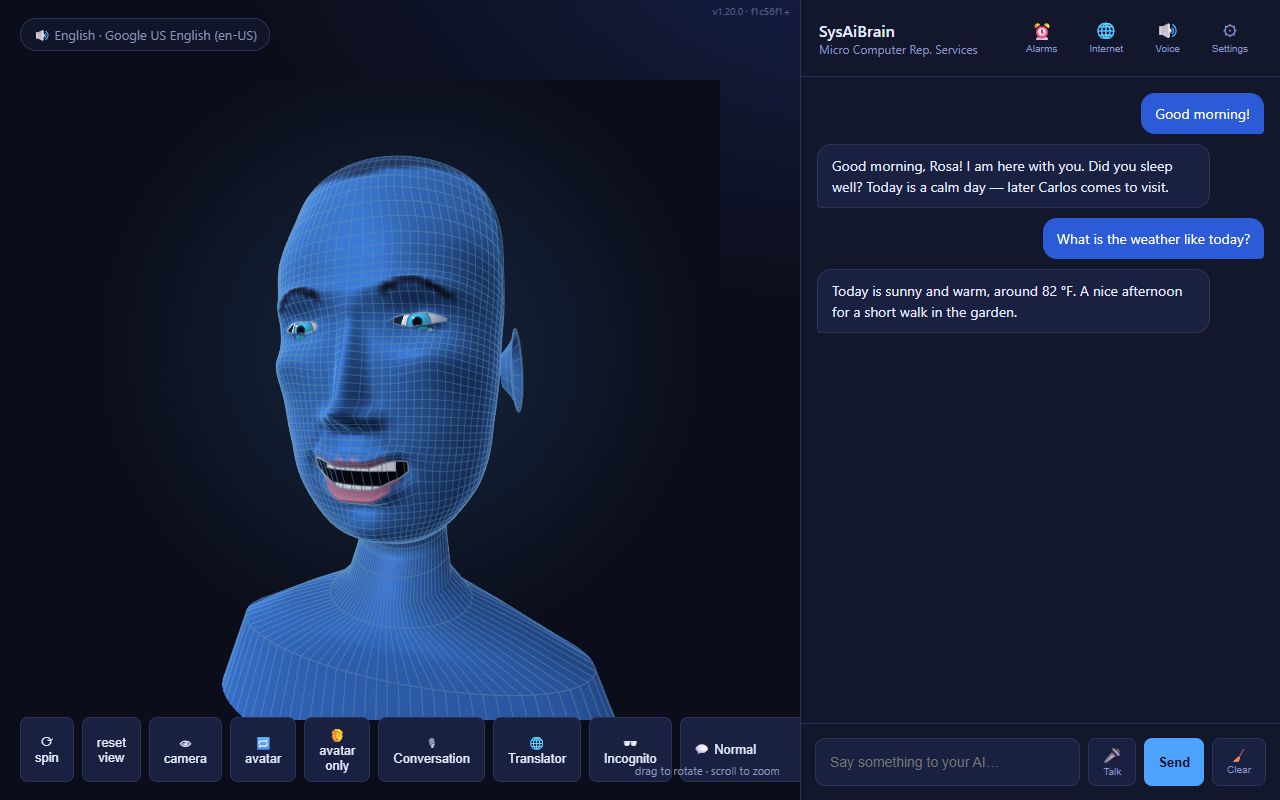
SysAiBrain is a talking AI companion with a 3D avatar face that runs in the browser of a PC, tablet or phone. You talk to it (or type), it answers out loud in your language, and it can see through the camera. Besides friendly conversation, it helps families care for someone:
- 🧓 Elderly care — company, check-ins, medicine reminders that must be confirmed, "not seen" and possible-fall alerts, and a 🧠 dementia-support option.
- 🏠 Home monitoring — while you are away, a photo alert when an unknown person or a loud noise is detected.
- 👶 Babysitter — listens for crying, alerts the parents with a photo and soothes the baby.
- 📱 SysAiBrain Care — a free phone app for caregivers: alerts, emergencies, messages, timers.
- Alarms, music, a big-text board, a two-way translator, Telegram alerts and commands, and more.
SysAiBrain is a helper, not a medical device and not an emergency service — see Limits & warnings.
SysAiBrain es un compañero con IA que habla, con una cara de avatar en 3D, y funciona en el navegador de una PC, tablet o teléfono. Le hablas (o escribes), te responde en voz alta en tu idioma y puede ver por la cámara. Además de conversar, ayuda a las familias a cuidar de alguien:
- 🧓 Cuidado de mayores — compañía, visitas, recordatorios de medicinas que deben confirmarse, alertas de "no se le ve" y de posible caída, y la opción 🧠 apoyo para la demencia.
- 🏠 Vigilancia del hogar — mientras no estás, una alerta con foto si detecta una persona desconocida o un ruido fuerte.
- 👶 Niñera — escucha si el bebé llora, avisa a los padres con una foto y lo calma.
- 📱 SysAiBrain Care — una app gratis para el teléfono de los cuidadores: alertas, emergencias, mensajes, temporizadores.
- Alarmas, música, una pizarra con letra grande, un traductor de dos vías, alertas y comandos por Telegram, y más.
SysAiBrain es una ayuda, no un dispositivo médico ni un servicio de emergencias — mira Límites y advertencias.
What do I need to use SysAiBrain?¿Qué necesito para usar SysAiBrain?
- A PC, laptop, tablet or phone with an up-to-date Chrome or Edge (Safari on iPhone/iPad also works — see iPhone).
- An internet connection (Wi-Fi recommended for devices that stay on all day).
- Ideally a camera and a microphone (most tablets, phones and laptops have both) and speakers.
- Nothing to install: open sysaibrain.com. On Android you can also install the SysAiBrain app; caregivers can install the SysAiBrain Care app.
For a device that stays at home (elderly care, babysitter, home monitoring), a tablet on a stand, plugged into the charger, works best.
- Una PC, laptop, tablet o teléfono con Chrome o Edge actualizado (Safari en iPhone/iPad también funciona — mira iPhone).
- Conexión a internet (Wi-Fi recomendado para dispositivos que pasan todo el día encendidos).
- Si es posible cámara y micrófono (casi todas las tablets, teléfonos y laptops los tienen) y bocinas.
- No hay que instalar nada: abre sysaibrain.com. En Android también puedes instalar la app SysAiBrain; los cuidadores pueden instalar la app SysAiBrain Care.
Para un dispositivo que se queda en casa (cuidado de mayores, niñera, vigilancia), lo mejor es una tablet en un soporte, conectada al cargador.
Quick start in 5 stepsInicio rápido en 5 pasos
- Create an account — a free guest account (how) or a licensed one.
- Allow the camera and microphone when the browser asks.
- Say hello — tap 🎙 Conversation and talk, or type in the chat box and press Send.
- Open ⚙ Settings — choose the reply languages, the time zone, the avatar and its voice; fill in 🧓 Elderly care if you care for someone.
- Invite the caregivers — the 📱 SysAiBrain Care app or Telegram, so alerts reach them (how).
- Crea una cuenta — una cuenta de invitado gratis (cómo) o una con licencia.
- Permite la cámara y el micrófono cuando el navegador lo pida.
- Saluda — pulsa 🎙 Conversation y habla, o escribe en el chat y pulsa Send.
- Abre ⚙ Settings — elige los idiomas de respuesta, la zona horaria, el avatar y su voz; llena 🧓 Elderly care si cuidas a alguien.
- Invita a los cuidadores — la app 📱 SysAiBrain Care o Telegram, para que les lleguen las alertas (cómo).
How do I create a free guest account?¿Cómo creo una cuenta de invitado gratis?
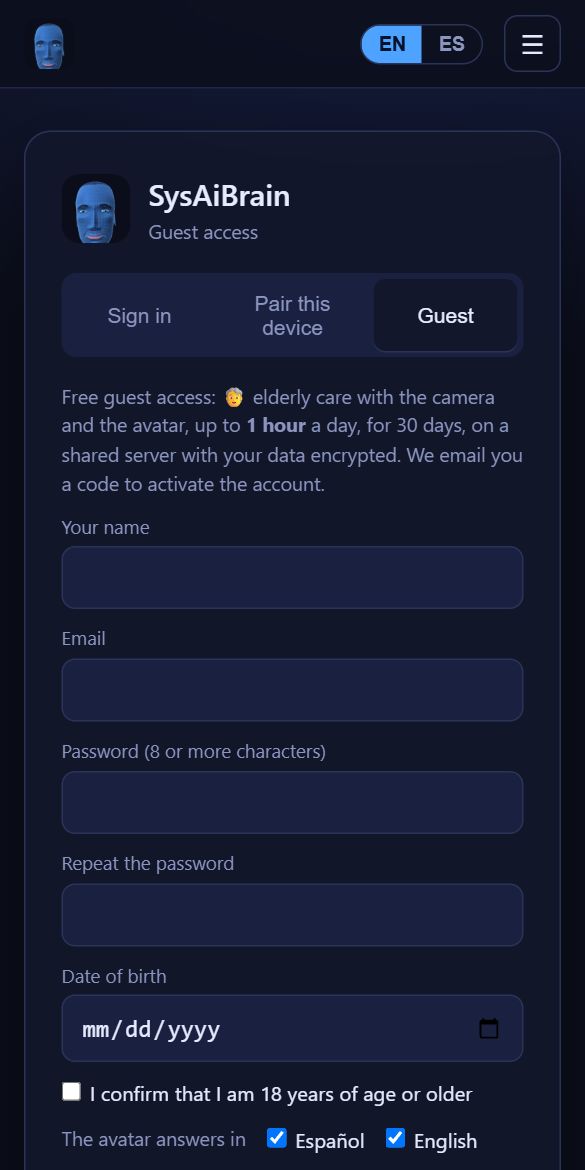
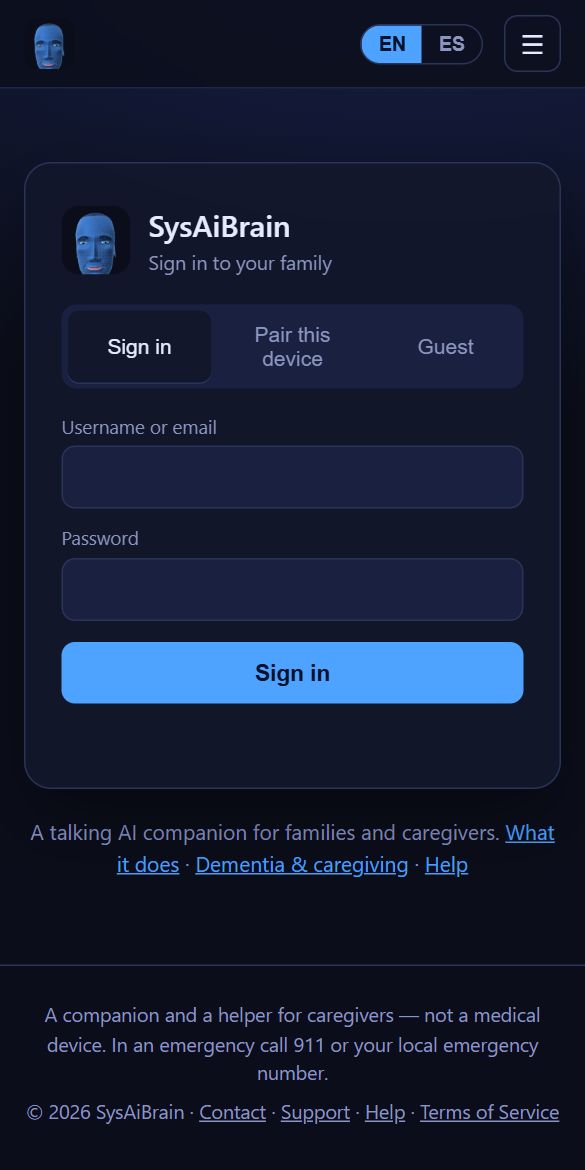
- Go to sysaibrain.com/login and open the Guest tab.
- Write your name, email, a password (8 or more characters) and your date of birth, confirm you are 18 or older, and choose the languages the avatar will answer in.
- Accept the Terms of Service. We email you a 6-digit code: type it in and the app opens — already in elderly-care mode.
The guest plan is free for 30 days, 1 hour a day, on this device plus one caregiver phone. Compare the plans.
- Entra a sysaibrain.com/login y abre la pestaña Guest (invitado).
- Escribe tu nombre, correo, una contraseña (8 o más caracteres) y tu fecha de nacimiento, confirma que tienes 18 años o más y elige los idiomas en que responderá el avatar.
- Acepta los Términos de servicio. Te enviamos un código de 6 dígitos por correo: escríbelo y se abre la app — ya en modo de cuidado de mayores.
El plan invitado es gratis por 30 días, 1 hora al día, en este dispositivo y un teléfono de cuidador. Compara los planes.
The activation code did not arriveNo me llegó el código de activación
- Wait a minute and check the spam / junk folder. The sender is noreply@sysaibrain.com.
- Check the email address you typed.
- On the code screen press Send a new code (one per minute). Codes work for 15 minutes; after 5 wrong tries ask for a new one.
- Still nothing? Write to support or email support@sysaibrain.com.
- Espera un minuto y revisa la carpeta de spam / correo no deseado. El remitente es noreply@sysaibrain.com.
- Revisa el correo que escribiste.
- En la pantalla del código pulsa Send a new code (uno por minuto). Los códigos valen 15 minutos; después de 5 intentos fallidos pide uno nuevo.
- ¿Nada todavía? Escribe a soporte o a support@sysaibrain.com.
Why am I asked to accept the Terms again?¿Por qué me piden aceptar los Términos otra vez?
When the Terms of Service change (for example with new plans or prices), everyone is asked to read and accept the new version once, on the next visit. The date of the version is at the top of the Terms page.
Cuando cambian los Términos de servicio (por ejemplo con planes o precios nuevos), a todos se les pide leer y aceptar la versión nueva una vez, en la próxima visita. La fecha de la versión está arriba en la página de los Términos.
I forgot my password / how do I change it?Olvidé mi contraseña / ¿cómo la cambio?
If you are still signed in on any device, change it in ⚙ Settings → 🔐 My account. If you cannot sign in anywhere, open a support ticket from the account's email and we will help you get back in. Devices paired with a code (tablets at home) keep working — they do not store your password.
Si sigues con la sesión abierta en algún dispositivo, cámbiala en ⚙ Settings → 🔐 My account. Si no puedes entrar en ninguno, abre un ticket de soporte desde el correo de la cuenta y te ayudamos a entrar. Los dispositivos vinculados con un código (tablets en casa) siguen funcionando — no guardan tu contraseña.
Can the app's screens be in Spanish?¿Las pantallas de la app pueden estar en español?
Yes. On the public pages use the EN / ES switch at the top. Inside the app: ⚙ Settings → 🌐 App language → English or Español. This changes the screens only; the language the avatar speaks is set in 🌍 Reply languages (see here).
Sí. En las páginas públicas usa el selector EN / ES de arriba. Dentro de la app: ⚙ Settings → 🌐 App language → English o Español. Esto cambia solo las pantallas; el idioma en que habla el avatar se elige en 🌍 Reply languages (mira aquí).
🗣 Talking with the avatar🗣 Hablar con el avatar
How do I talk to it — voice or typing?¿Cómo le hablo — con la voz o escribiendo?
- 🎙 Conversation (hands-free): tap it once and just talk. It listens all the time, pauses while the avatar speaks, and answers when you stop talking. Tap again to stop. The elderly-care and babysitter modes turn it on by themselves.
- 🎤 Talk (next to Send): tap, say one thing, and it is sent when you stop.
- Typing: write in the box at the bottom of the chat and press Send (or Enter).
The avatar reads every answer aloud and moves its lips and face with the feeling of the answer.
Listening uses the browser's speech recognition (best in Chrome and Edge). If it drops, or the browser has none (Firefox, Brave…), SysAiBrain's own backup listener takes over by itself: the 🎤 button gets a dashed border and your words appear when you stop talking instead of while you talk.
- 🎙 Conversation (manos libres): púlsalo una vez y habla. Escucha todo el tiempo, se pausa mientras el avatar habla y responde cuando dejas de hablar. Púlsalo otra vez para parar. Los modos de cuidado de mayores y niñera lo activan solos.
- 🎤 Talk (junto a Send): pulsa, di una cosa y se envía cuando terminas.
- Escribiendo: escribe en el cuadro de abajo del chat y pulsa Send (o Enter).
El avatar lee en voz alta cada respuesta y mueve los labios y la cara según el sentimiento de la respuesta.
Para escuchar usa el reconocimiento de voz del navegador (mejor en Chrome y Edge). Si se corta, o el navegador no lo tiene (Firefox, Brave…), el oyente de respaldo de SysAiBrain se encarga solo: el botón 🎤 tiene el borde de rayas y tus palabras aparecen cuando terminas de hablar en lugar de mientras hablas.
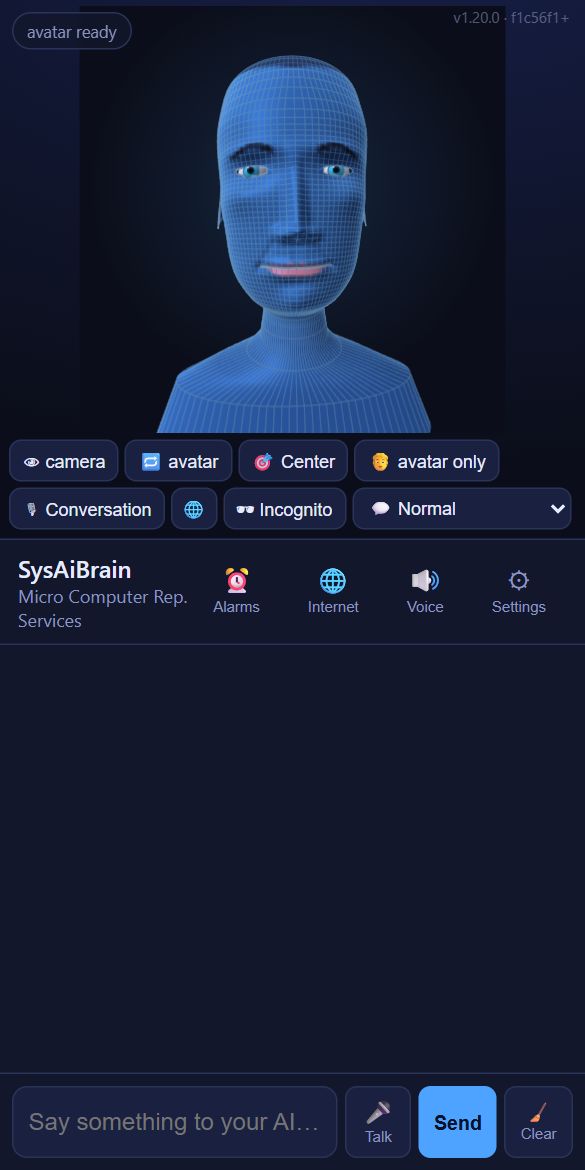
What do the buttons under the avatar do?¿Qué hacen los botones debajo del avatar?
| Button | What it does |
|---|---|
| ⟳ spin · reset view | Turn the avatar slowly · put it back in front. You can also drag to rotate and scroll to zoom. |
| 👁 camera | Opens the camera panel: what the avatar sees, who it recognises, and "People I know". |
| 🔁 avatar | Switches between the avatars your family can use. |
| 🖐 avatar only | Hides the chat: just the avatar, big (good for a tablet at home). |
| 🎙 Conversation | Hands-free listening on/off. |
| 🌐 Translator | Two-button interpreter between two languages (more). |
| 🕶 Incognito | A black screen that hides the chat and the avatar while the camera, microphone and voice keep working. Double-tap (or Esc) to show it again. |
| 💬 Normal ▾ | The mode: Normal, 🏠 Home monitoring, 🧓 Elderly care, 👶 Babysitter (modes). |
At the top of the chat: ⏰ Alarms, 🌐 Internet (web search on/off), 🔊 Voice (mute the avatar on this device) and ⚙ Settings. On a phone the buttons show as icons; with "button names" on (default) their names show too.
| Botón | Qué hace |
|---|---|
| ⟳ spin · reset view | Gira el avatar despacio · lo pone de frente otra vez. También puedes arrastrar para girarlo y usar la rueda para acercar. |
| 👁 camera | Abre el panel de la cámara: lo que ve el avatar, a quién reconoce y "People I know" (personas que conoce). |
| 🔁 avatar | Cambia entre los avatares que tu familia puede usar. |
| 🖐 avatar only | Oculta el chat: solo el avatar, en grande (bueno para una tablet en casa). |
| 🎙 Conversation | Escucha manos libres sí/no. |
| 🌐 Translator | Intérprete con dos botones entre dos idiomas (más). |
| 🕶 Incognito | Una pantalla negra que oculta el chat y el avatar mientras la cámara, el micrófono y la voz siguen funcionando. Doble toque (o Esc) para verla otra vez. |
| 💬 Normal ▾ | El modo: Normal, 🏠 Vigilancia del hogar, 🧓 Cuidado de mayores, 👶 Niñera (modos). |
Arriba del chat: ⏰ Alarms (alarmas), 🌐 Internet (búsqueda web sí/no), 🔊 Voice (silenciar el avatar en este dispositivo) y ⚙ Settings (configuración). En un teléfono los botones se ven como iconos; con "nombres de botones" activado (por defecto) también se ven sus nombres.

Can I choose the avatar and give it a name?¿Puedo elegir el avatar y ponerle nombre?
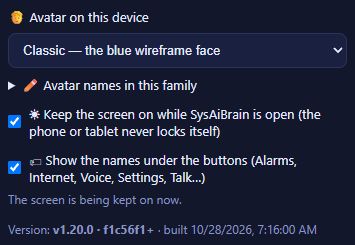
Yes. Each device can show a different avatar: BBGirl (a young woman — the one a new device shows), BBoy (a young man) or the classic blue 3D face. Tap 🔁 avatar or choose it in ⚙ Settings → 📱 This device.
The family owner can give each avatar a name there (for example "Sofía"). The avatar introduces itself with that name, and Telegram and the caregiver app answer with the name of the avatar last shown at home. A male avatar uses a male voice when one is available for the language.
Sí. Cada dispositivo puede mostrar un avatar distinto: BBGirl (una mujer joven — la que muestra un dispositivo nuevo), BBoy (un hombre joven) o la cara 3D azul clásica. Pulsa 🔁 avatar o elígelo en ⚙ Settings → 📱 This device.
El dueño de la familia puede ponerle nombre a cada avatar ahí (por ejemplo "Sofía"). El avatar se presenta con ese nombre, y Telegram y la app de cuidadores responden con el nombre del último avatar que se vio en casa. Un avatar masculino usa una voz masculina cuando hay una para el idioma.
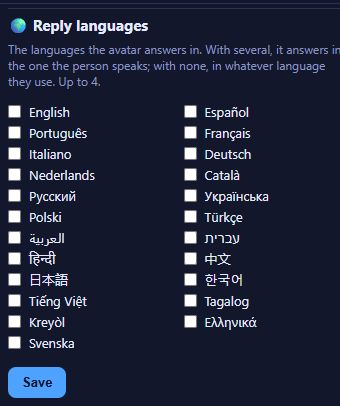
Which languages does it speak? Can I change them?¿Qué idiomas habla? ¿Puedo cambiarlos?
The avatar talks in English, Spanish, Portuguese, French, Italian and German. Choose your family's languages in ⚙ Settings → 🌍 Reply languages: with several, it answers in the language the person speaks; with one, always in that one. The listening language (Settings → Listening) can be automatic or fixed — for example "Español (México)".
El avatar habla en inglés, español, portugués, francés, italiano y alemán. Elige los idiomas de tu familia en ⚙ Settings → 🌍 Reply languages: con varios, responde en el idioma en que habla la persona; con uno, siempre en ese. El idioma de escucha (Settings → Listening) puede ser automático o fijo — por ejemplo "Español (México)".
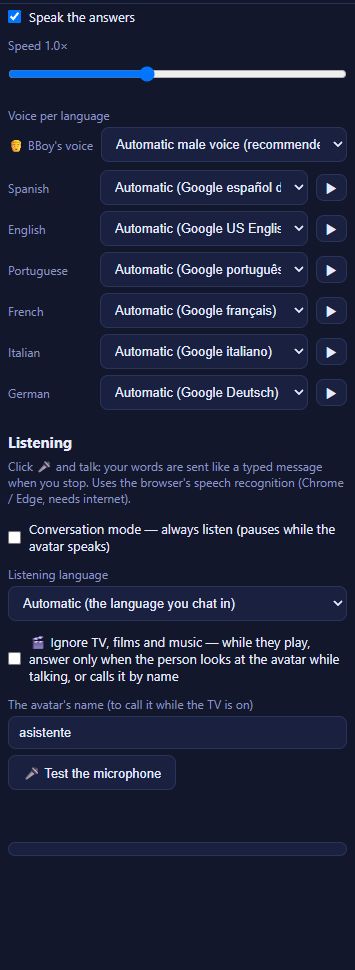
How do I change the voice, its speed, or mute it?¿Cómo cambio la voz, su velocidad o la silencio?
⚙ Settings → Voice: "Speak the answers" on/off, the speed, and a voice for each language (▶ plays a sample). "Automatic" picks a good voice of the device; some languages also have server voices that sound the same on every device. The 🔊 Voice button at the top of the chat mutes the avatar on this device only. From Telegram, /mute and /unmute work on every device.
⚙ Settings → Voice: "Speak the answers" (leer las respuestas) sí/no, la velocidad y una voz para cada idioma (▶ toca una muestra). "Automatic" escoge una buena voz del dispositivo; algunos idiomas también tienen voces del servidor que suenan igual en todos los dispositivos. El botón 🔊 Voice arriba del chat silencia el avatar solo en este dispositivo. Desde Telegram, /mute y /unmute funcionan en todos los dispositivos.
Does it remember me and what we talked about?¿Me recuerda a mí y lo que hablamos?
Yes. SysAiBrain keeps short memory notes about each person it knows (name, family, likes, important things said) and the recent conversation, so it can carry on later — even on another device of the family. When it recognises who is talking (by face or voice), it uses that person's own conversation. You can download everything it keeps (your data). To talk without being seen, use 🕶 Incognito; it hides the screen but does not stop memory.
Sí. SysAiBrain guarda notas cortas sobre cada persona que conoce (nombre, familia, gustos, cosas importantes que dijo) y la conversación reciente, para seguirla después — incluso en otro dispositivo de la familia. Cuando reconoce quién habla (por la cara o la voz), usa la conversación de esa persona. Puedes descargar todo lo que guarda (tus datos). Para hablar sin que se vea la pantalla usa 🕶 Incognito; oculta la pantalla pero no detiene la memoria.
Can it look things up on the internet?¿Puede buscar cosas en internet?
Yes, when 🌐 Internet at the top of the chat is on: for news, weather, sports scores, opening hours and other current facts it searches the web and tells you the answer. Turn it off if you prefer answers only from the AI's own knowledge. The AI can still be wrong — check important facts.
Sí, cuando 🌐 Internet arriba del chat está activado: para noticias, el tiempo, resultados deportivos, horarios y otros datos actuales busca en la web y te dice la respuesta. Desactívalo si prefieres respuestas solo con lo que sabe la IA. La IA puede equivocarse — verifica los datos importantes.
Things you can ask the avatarCosas que le puedes pedir al avatar
- "Set an alarm at 7:30" · "Remind me of the pill every day at 3" · "Cancel the alarms".
- "Play boleros" · "Put on the radio" · "Stop the music".
- "Tell Carlos I need bread" — the message goes to the caregiver's app or Telegram.
- "Watch the house while I'm out" (home monitoring) · "Normal mode".
- "Show me the camera" · "Show the events" · "What do you see?" · "Who am I?"
- "What day is today?" · "What is the weather?" · "Tell me a story" · "Let's play a word game".
- "Write the shopping list on the board".
- "Ponme una alarma a las 7:30" · "Recuérdame la pastilla todos los días a las 3" · "Cancela las alarmas".
- "Pon boleros" · "Pon la radio" · "Para la música".
- "Dile a Carlos que necesito pan" — el mensaje va a la app o al Telegram del cuidador.
- "Vigila la casa mientras no estoy" (vigilancia del hogar) · "Modo normal".
- "Muéstrame la cámara" · "Muéstrame los eventos" · "¿Qué ves?" · "¿Quién soy?"
- "¿Qué día es hoy?" · "¿Cómo está el tiempo?" · "Cuéntame un cuento" · "Juguemos a las palabras".
- "Escribe la lista de compras en la pizarra".
📷 Camera, recognition and listening📷 Cámara, reconocimiento y escucha
The browser does not let SysAiBrain use the camera or microphoneEl navegador no deja usar la cámara o el micrófono
- Make sure the address starts with https://.
- Click the lock icon next to the address → Site settings → allow Camera and Microphone, then reload.
- Close other apps that use the camera (video calls).
- On Android: phone Settings → Apps → Chrome (or SysAiBrain) → Permissions → allow Camera and Microphone.
- Use ⚙ Settings → Listening → Test the microphone: it tells you what is wrong and can send the result to support.
- Asegúrate de que la dirección empieza con https://.
- Pulsa el candado junto a la dirección → Configuración del sitio → permite Cámara y Micrófono y recarga.
- Cierra otras apps que usan la cámara (videollamadas).
- En Android: Ajustes del teléfono → Aplicaciones → Chrome (o SysAiBrain) → Permisos → permite Cámara y Micrófono.
- Usa ⚙ Settings → Listening → Test the microphone: te dice qué pasa y puede enviar el resultado a soporte.
How does it recognise people? ("People I know")¿Cómo reconoce a las personas? ("People I know")
Open 👁 camera → People I know. When a face is in view, tap to add the person with their name (better: a few pictures from different angles and light). From then on the avatar greets them by name and uses their own conversation and memory. It can also learn each person's voice, so it knows who is talking even when the face is not in view (not on Android phones — see below). The faces and voices are compared on your own device; the server keeps only the numbers that describe them, encrypted. Remove a person there at any time.
Recognition is good but not perfect: twins, poor light, glasses or a face turned away can confuse it.
Abre 👁 camera → People I know. Cuando hay una cara a la vista, pulsa para agregar a la persona con su nombre (mejor: algunas fotos desde distintos ángulos y luz). Desde entonces el avatar la saluda por su nombre y usa su propia conversación y memoria. También puede aprender la voz de cada persona, para saber quién habla aunque la cara no se vea (no en teléfonos Android — mira abajo). Las caras y las voces se comparan en tu propio dispositivo; el servidor guarda solo los números que las describen, cifrados. Puedes borrar a una persona ahí cuando quieras.
El reconocimiento es bueno pero no perfecto: gemelos, poca luz, lentes o la cara de lado pueden confundirlo.
The avatar does not hear me on AndroidEl avatar no me oye en Android
On Android the speech recognizer needs the microphone for itself, so voice recognition of people is off there, and in home-monitoring and babysitter modes the microphone listens for sounds (crying, noises) instead of conversation. Tap 🎙 Conversation, allow the microphone, and speak after the beep. If the TV is on, call the avatar by its name first (default: "asistente"). A PC can listen for conversation and sounds at the same time.
En Android el reconocimiento de voz necesita el micrófono solo para él, así que ahí no se reconoce quién habla por la voz, y en los modos de vigilancia y niñera el micrófono escucha sonidos (llanto, ruidos) en lugar de conversación. Pulsa 🎙 Conversation, permite el micrófono y habla después del pitido. Si la TV está encendida, llama primero al avatar por su nombre (por defecto: "asistente"). Una PC puede escuchar conversación y sonidos a la vez.
The avatar answers the TVEl avatar le contesta a la TV
Turn on ⚙ Settings → Listening → Ignore TV, films and music. While media plays it only answers when someone looks at it while talking, or calls it by its name (you can change the name there). It is off by default.
Activa ⚙ Settings → Listening → Ignore TV, films and music. Mientras suena la TV solo responde cuando alguien le habla mirándolo o lo llama por su nombre (puedes cambiar el nombre ahí). Está desactivado por defecto.
Can it show me the camera or a photo?¿Me puede mostrar la cámara o una foto?
At home, ask "show me the camera" — it shows the current image in the chat. "Show the events" lists recent monitoring and care events with their photos. From outside: Telegram /photo, or 📷 Photo in the caregiver app, asks every camera at home for a picture. The avatar never shows other pictures, screens or files.
En casa, pide "muéstrame la cámara" — enseña la imagen actual en el chat. "Muéstrame los eventos" lista los eventos recientes de vigilancia y cuidado con sus fotos. Desde fuera: /photo en Telegram, o 📷 Photo en la app de cuidadores, pide una foto a cada cámara de la casa. El avatar nunca muestra otras imágenes, pantallas ni archivos.
🎛 Modes🎛 Modos
What are the modes and how do I change them?¿Qué son los modos y cómo los cambio?
| Mode | For | What it does |
|---|---|---|
| 💬 Normal | Everyday conversation | Chat, voice, camera, alarms, music, translator. |
| 🏠 Home monitoring | When nobody is home | Photo alert for an unknown person or a loud noise; tells you when a known family member arrives and asks whether to stop. |
| 🧓 Elderly care | Someone who lives alone or needs company | Company, check-ins, reminders, medicine confirmation, "not seen" and fall alerts, help words, optional dementia support. |
| 👶 Babysitter | A sleeping baby | Listens for crying, photo alert to the parents, soothes with a soft voice and/or a lullaby. |
Change the mode with the mode button (💬 Normal ▾), by asking the avatar ("watch the house", "baby mode", "normal mode"), from Telegram, or from the caregiver app. The mode is for the whole family: every device at home follows it. In home, elderly and babysitter modes the screen goes full-screen and hides the chat and the controls; tap the faint 🔒 in the bottom-right corner to get them back (a PIN if you set one).
The guest plan runs in elderly care only.
| Modo | Para | Qué hace |
|---|---|---|
| 💬 Normal | Conversación diaria | Chat, voz, cámara, alarmas, música, traductor. |
| 🏠 Vigilancia del hogar | Cuando no hay nadie en casa | Alerta con foto si hay una persona desconocida o un ruido fuerte; avisa cuando llega alguien conocido de la familia y pregunta si debe parar. |
| 🧓 Cuidado de mayores | Alguien que vive solo o necesita compañía | Compañía, visitas, recordatorios, confirmación de medicinas, alertas de "no se le ve" y de caída, palabras de ayuda, apoyo opcional para la demencia. |
| 👶 Niñera | Un bebé que duerme | Escucha si llora, alerta con foto a los padres, lo calma con voz suave y/o una canción de cuna. |
Cambia el modo con el botón de modo (💬 Normal ▾), pidiéndoselo al avatar ("vigila la casa", "modo bebé", "modo normal"), desde Telegram o desde la app de cuidadores. El modo es para toda la familia: todos los dispositivos de la casa lo siguen. En los modos de vigilancia, cuidado y niñera la pantalla se pone completa y oculta el chat y los controles; pulsa el 🔒 tenue de la esquina inferior derecha para verlos otra vez (con PIN si pusiste uno).
El plan invitado funciona solo en cuidado de mayores.
Can I keep the tablet in a mode so nobody turns it off?¿Puedo dejar la tablet en un modo sin que la apaguen?
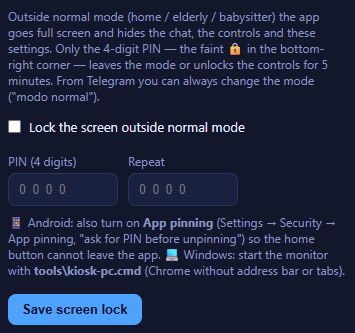
Yes: ⚙ Settings → 🔒 Screen lock → "Lock the screen outside normal mode" with a 4-digit PIN. While a mode runs, leaving it or opening the controls needs the PIN (it unlocks for 5 minutes). From Telegram or the caregiver app you can always change the mode without the PIN.
- Android: also turn on App pinning (phone Settings → Security → App pinning, "ask for PIN before unpinning") so the home button cannot leave the app.
- Turn on Keep the screen on in ⚙ Settings → 📱 This device, and keep the charger plugged in.
- Windows PC: start it with tools\kiosk-pc.cmd (Chrome without address bar or tabs).
Sí: ⚙ Settings → 🔒 Screen lock → "Lock the screen outside normal mode" con un PIN de 4 dígitos. Mientras un modo está activo, salir de él o abrir los controles pide el PIN (se desbloquea por 5 minutos). Desde Telegram o la app de cuidadores siempre puedes cambiar el modo sin el PIN.
- Android: activa también la fijación de pantalla (Ajustes → Seguridad → Fijar aplicaciones, "pedir PIN para dejar de fijar") para que el botón de inicio no saque de la app.
- Activa Keep the screen on (mantener la pantalla encendida) en ⚙ Settings → 📱 This device, y deja el cargador conectado.
- PC con Windows: ábrelo con tools\kiosk-pc.cmd (Chrome sin barra de direcciones ni pestañas).
🧓 Elderly care and dementia support🧓 Cuidado de mayores y apoyo para la demencia
The person ate, drank or took the medicine where the avatar could not see — how do I tell it?La persona comió, bebió o tomó la medicina donde el avatar no la veía — ¿cómo se lo digo?
In the SysAiBrain Care app tap 🍽 Ate / drank / 💊 (in the row of buttons above the message box; slide it to the left), pick 🍳 Breakfast, 🥪 Lunch, 🍲 Dinner, 🍎 Snack, 💧 Water, 🥤 Drink, 💊 Medicine or 🧪 Test / sample (urine, blood, blood sugar, blood pressure, stool or other — add the result or the lab if you like), add what it was if you like, and tap ✓ Tell the avatar. It goes into today's journal: the avatar does not ask about that meal, the water reminder starts again, a medicine reminder waiting for confirmation is done (the avatar stops reminding), it answers "did I eat?" truthfully, and the other caregivers see it in their app. It works the same in 👶 babysitter mode.
En la app SysAiBrain Care toca 🍽 Comió / bebió / 💊 (en la fila de botones sobre el mensaje; deslízala a la izquierda), elige 🍳 Desayuno, 🥪 Almuerzo, 🍲 Cena, 🍎 Merienda, 💧 Agua, 🥤 Bebida, 💊 Medicina o 🧪 Prueba / muestra (orina, sangre, azúcar, presión, heces u otra — añade el resultado o el laboratorio si quieres), añade qué fue si quieres y toca ✓ Avisar al avatar. Queda en el diario de hoy: el avatar no pregunta por esa comida, el recordatorio de agua empieza de nuevo, un recordatorio de medicina que esperaba confirmación queda hecho (el avatar deja de recordarlo), contesta "¿ya comí?" con la verdad y los demás cuidadores lo ven en su app. Funciona igual en 👶 modo niñera.
How do I mute the avatar during therapy (or a visit, a call)?¿Cómo silencio el avatar durante una terapia (o una visita, una llamada)?
In the SysAiBrain Care app tap 🔊 at the top. Choose how long — Until I turn it back on, 30 min, 1 hour, 1½ hours or 2 hours — and tap 🔇 Mute next to the avatar device (or 🔇 Mute all). The avatar stops talking at once, and the 🔊 button turns red 🔇 on every caregiver's app so everyone can see it is muted. It stays muted even if the page reloads or the mode changes, until you tap 🔊 Unmute, the time ends, or someone at the device taps 🔊 there. While muted the avatar does not answer what it hears and starts no check-ins or greetings (typing on the device still gets an answer), but it still watches: falls, help words and alerts keep working. Telegram /mute and /unmute do the same.
En la app SysAiBrain Care toca 🔊 arriba. Elige por cuánto tiempo — Hasta que la active, 30 min, 1 hora, 1½ horas o 2 horas — y toca 🔇 Silenciar junto al dispositivo del avatar (o 🔇 Silenciar todos). El avatar deja de hablar enseguida y el botón 🔊 se pone rojo 🔇 en la app de cada cuidador, así todos ven que está silenciado. Sigue silenciado aunque la página se recargue o cambie el modo, hasta que toques 🔊 Activar, se acabe el tiempo o alguien frente al dispositivo toque 🔊 allí. Mientras está silenciado el avatar no contesta lo que oye y no saluda ni pregunta por su cuenta (escribir en el dispositivo sí recibe respuesta), pero sigue vigilando: las caídas, las palabras de ayuda y las alertas siguen funcionando. En Telegram /mute y /unmute hacen lo mismo.
An emergency alert went to several caregivers — does everyone have to answer?Una alerta de emergencia llegó a varios cuidadores — ¿todos tienen que contestar?
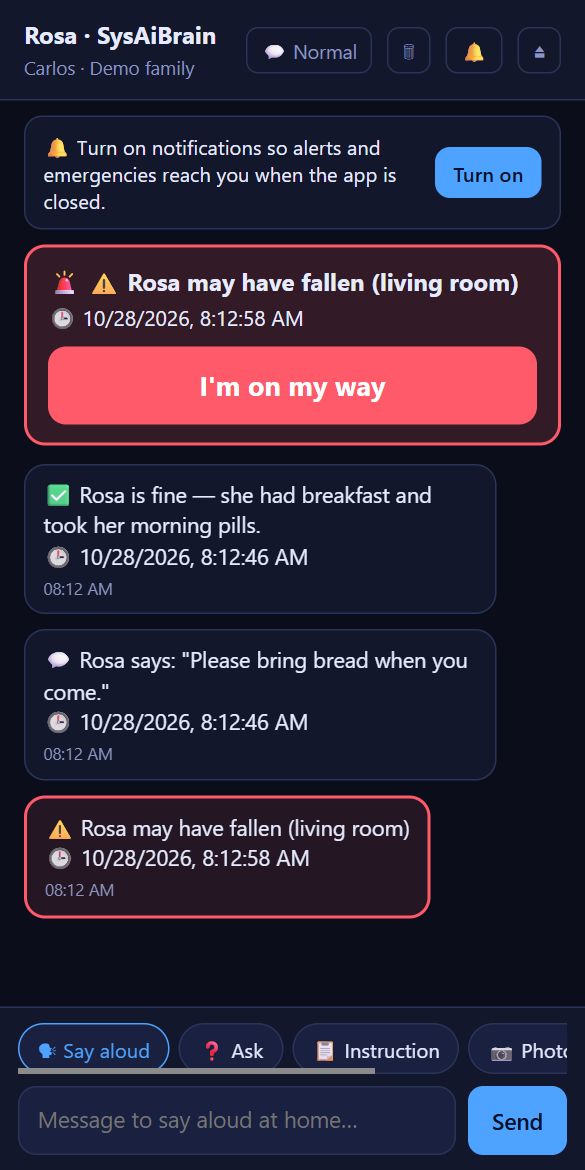
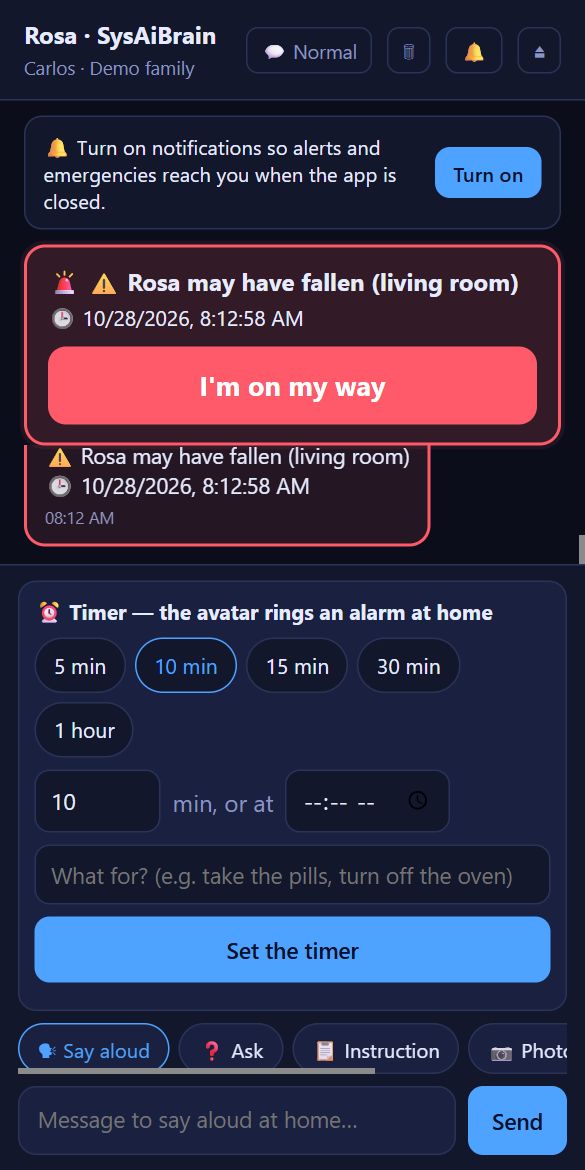
No. The first person who taps I'm on my way in the SysAiBrain Care app answers it for everyone: the alarm stops on every phone, the 🚨 notification on the other phones is replaced by "✅ name answered the emergency and is on the way", the people on Telegram or WhatsApp get the same message, and the avatar tells the person at home that help is coming. On Telegram you can answer too: write voy, en camino or on my way (or /onmyway).
No. La primera persona que toca Voy en camino en la app SysAiBrain Care la contesta para todos: la alarma se detiene en todos los teléfonos, la notificación 🚨 de los demás teléfonos se cambia por "✅ nombre respondió a la emergencia y va en camino", quienes usan Telegram o WhatsApp reciben el mismo mensaje y el avatar le dice a la persona en casa que la ayuda viene. En Telegram también puedes contestar: escribe voy, en camino u on my way (o /onmyway).
The SAB Care screen is full — how do I start fresh?La pantalla de SAB Care está llena — ¿cómo empiezo de nuevo?
Tap 🧹 at the top of the SysAiBrain Care app. Every open panel closes, live listening and the translator stop, the message box is emptied and the messages on this phone are cleared — as when the app is opened. An emergency nobody answered yet stays. The family and the other caregivers keep their messages.
Toca 🧹 arriba en la app SysAiBrain Care. Se cierran todos los paneles abiertos, se detienen la escucha en vivo y el traductor, se vacía el mensaje y se borran los mensajes de este teléfono — como al abrir la app. Una emergencia que nadie ha contestado se queda. La familia y los demás cuidadores conservan sus mensajes.
Can I use the translator from the caregiver app?¿Puedo usar el traductor desde la app de cuidadores?
Yes. In the SysAiBrain Care app tap 🌐 Translator, choose your language and the other person's (⇄ swaps them), then tap your side and speak — or type. Your phone says the translation aloud and shows both texts. Nothing is saved. Not on the guest plan.
Sí. En la app SysAiBrain Care toca 🌐 Traductor, elige tu idioma y el de la otra persona (⇄ los cambia), luego toca tu lado y habla — o escribe. Tu teléfono dice la traducción en voz alta y muestra los dos textos. No se guarda nada. No está en el plan de invitado.
Does the avatar talk when the person is only snoring?¿El avatar habla cuando la persona solo está roncando?
No. In 🧓 elderly care, on a PC, the avatar listens for snoring (offline, on the device). While it hears snoring, words "heard" in the noise are ignored (a help word still works), there are no check-ins or proactive prompts (reminders you set still ring), the device shows 😴 asleep for caregivers, and the person counts as present (no "not seen" alert). On Android phones and tablets the microphone serves the conversation, so this check does not run there.
No. En 🧓 cuidado de mayores, en una PC, el avatar escucha si hay ronquidos (sin internet, en el dispositivo). Mientras oye ronquidos, las palabras que "oye" en el ruido se ignoran (una palabra de ayuda sigue funcionando), no hay saludos ni avisos por su cuenta (los recordatorios que pusiste siguen sonando), el dispositivo muestra 😴 dormida para los cuidadores y la persona cuenta como presente (sin alerta de "no se ha visto"). En teléfonos y tablets Android el micrófono es para la conversación, así que allí no se hace esta revisión.
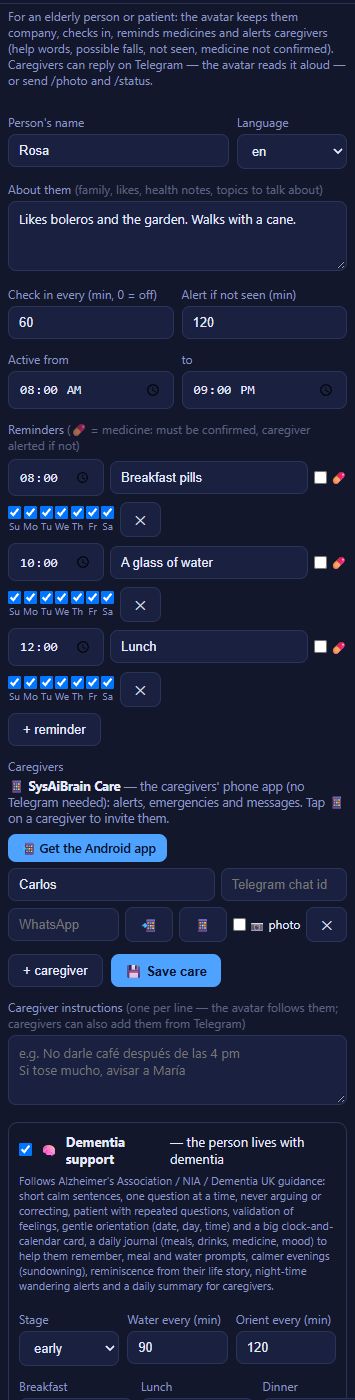
How do I set up elderly care?¿Cómo configuro el cuidado de mayores?
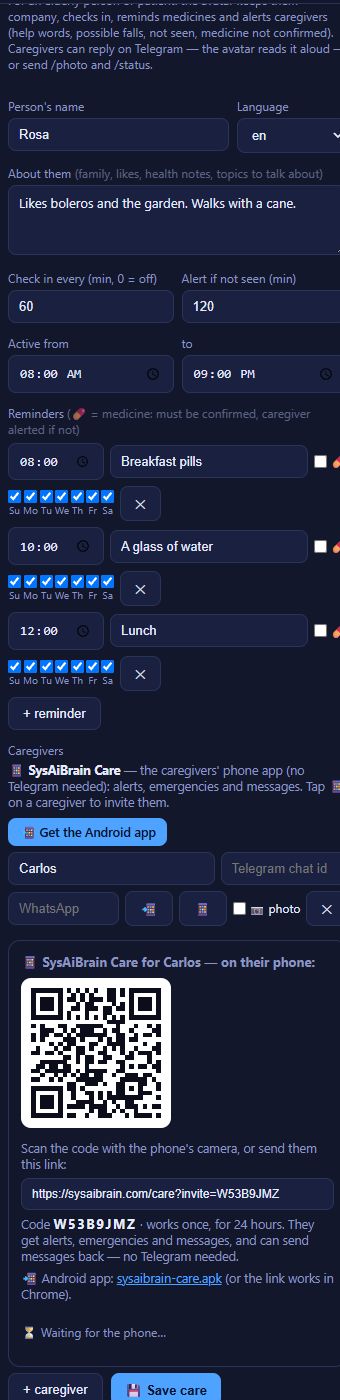
- ⚙ Settings → 🧓 Elderly care.
- Write the person's name and language, and about them: family, likes, health notes, topics to talk about — the avatar uses this in conversation.
- Check in every (minutes): how often the avatar asks how they feel (0 = off). Alert if not seen (minutes): an alert with a photo if nobody is seen by the camera that long, only between Active from / to.
- Reminders: time, text and days. Mark 💊 for medicine that must be confirmed.
- Caregivers: add each one (name; Telegram or WhatsApp if used), then 📱 to invite them to the caregiver app.
- Caregiver instructions, one per line ("no coffee after 4 pm") — the avatar follows them.
- Press 💾 Save care, then choose 🧓 Elderly care in the mode button.
- ⚙ Settings → 🧓 Elderly care.
- Escribe el nombre y el idioma de la persona, y sobre ella: familia, gustos, notas de salud, temas de conversación — el avatar lo usa al conversar.
- Check in every (minutos): cada cuánto el avatar le pregunta cómo se siente (0 = no). Alert if not seen (minutos): una alerta con foto si la cámara no ve a nadie ese tiempo, solo entre Active from / to (horas activas).
- Reminders (recordatorios): hora, texto y días. Marca 💊 para una medicina que debe confirmarse.
- Caregivers (cuidadores): agrega a cada uno (nombre; Telegram o WhatsApp si se usan) y luego 📱 para invitarlo a la app de cuidadores.
- Caregiver instructions, una por línea ("no darle café después de las 4") — el avatar las sigue.
- Pulsa 💾 Save care y elige 🧓 Elderly care en el botón de modo.
How do medicine reminders work?¿Cómo funcionan los recordatorios de medicinas?
At the time of a 💊 reminder the avatar tells the person kindly and waits for a confirmation ("yes, I took it"). If there is none it repeats the reminder every 10 minutes (3 times), and after 25 minutes the caregivers get an alert. A confirmed medicine is written in today's journal. Reminders without 💊 are just said once.
A la hora de un recordatorio 💊 el avatar se lo dice con cariño a la persona y espera una confirmación ("sí, ya me la tomé"). Si no la hay, repite el recordatorio cada 10 minutos (3 veces) y a los 25 minutos los cuidadores reciben una alerta. Una medicina confirmada se anota en el diario del día. Los recordatorios sin 💊 se dicen una sola vez.
Which situations send an alert in elderly care?¿Qué situaciones envían una alerta en cuidado de mayores?
- 🆘 Help words — "help", "I fell", "emergency", "ayuda", "me caí", "socorro", "me duele el pecho"… (you can edit the list): an urgent alert with a photo, right away.
- ⚠️ Possible fall — someone lying down for about 8 seconds: the avatar asks if they are OK and sends an urgent photo alert.
- 👀 Not seen — nobody seen for the time you set, within the active hours.
- 💊 Medicine not confirmed after 25 minutes.
- 🌙 Night-time wandering (with dementia support) — someone up at night for over a minute.
- 💬 Messages the person asks to pass on ("tell Carlos…").
- 📋 A daily summary (default 8:30 pm, text only — no photo): meals, water, medicine, mood. Change the time or clear it to turn it off in Elderly care → Daily summary at.
Emergencies (help words, falls, not seen, night) ring as an alarm in the caregiver app until someone answers. The same kind of alert is sent at most once every 2 minutes.
- 🆘 Palabras de ayuda — "ayuda", "me caí", "socorro", "emergencia", "me duele el pecho", "help", "I fell"… (puedes editar la lista): una alerta urgente con foto, en el momento.
- ⚠️ Posible caída — alguien acostado unos 8 segundos: el avatar le pregunta si está bien y envía una alerta urgente con foto.
- 👀 No se le ve — nadie a la vista durante el tiempo que elegiste, dentro de las horas activas.
- 💊 Medicina no confirmada a los 25 minutos.
- 🌙 Deambular de noche (con apoyo para la demencia) — alguien levantado de noche por más de un minuto.
- 💬 Mensajes que la persona pide pasar ("dile a Carlos…").
- 📋 Un resumen diario (por defecto 8:30 pm, solo texto — sin foto): comidas, agua, medicinas, ánimo. Cambia la hora o déjala vacía para apagarlo en Elderly care → Daily summary at.
Las emergencias (palabras de ayuda, caídas, no se le ve, de noche) suenan como alarma en la app de cuidadores hasta que alguien responde. El mismo tipo de alerta se envía como máximo una vez cada 2 minutos.
What does the dementia-support option change?¿Qué cambia la opción de apoyo para la demencia?
Turn on 🧠 Dementia support in Elderly care and choose the stage (early, middle, late). The avatar then follows dementia-care guidance (Alzheimer's Association, NIA, Dementia UK): short calm sentences, one question at a time, no arguing or correcting, patience with repeated questions and validation of feelings. It also:
- shows a big clock-and-calendar card (day, date, time, "it is morning", the next reminder and today's journal);
- reminds about water and meals at the times you set and gently re-orients (date, day, time) every so often;
- keeps the late afternoon calmer (sundowning, default 4–8 pm);
- uses the life story you write for reminiscence, and avoids the sensitive topics you list;
- alerts about night-time wandering.
More on the Dementia & caregiving page.
Activa 🧠 Dementia support en Elderly care y elige la etapa (inicial, media, avanzada). El avatar sigue entonces las guías de cuidado de la demencia (Alzheimer's Association, NIA, Dementia UK): frases cortas y calmadas, una pregunta a la vez, sin discutir ni corregir, paciencia con las preguntas repetidas y validación de los sentimientos. Además:
- muestra una tarjeta grande de reloj y calendario (día, fecha, hora, "es de mañana", el próximo recordatorio y el diario de hoy);
- recuerda tomar agua y las comidas a las horas que elijas y orienta con suavidad (fecha, día, hora) de vez en cuando;
- mantiene más calmado el atardecer (sundowning, por defecto 4–8 pm);
- usa la historia de vida que escribas para recordar, y evita los temas sensibles que indiques;
- avisa si deambula de noche.
Más en la página de Demencia y cuidado.
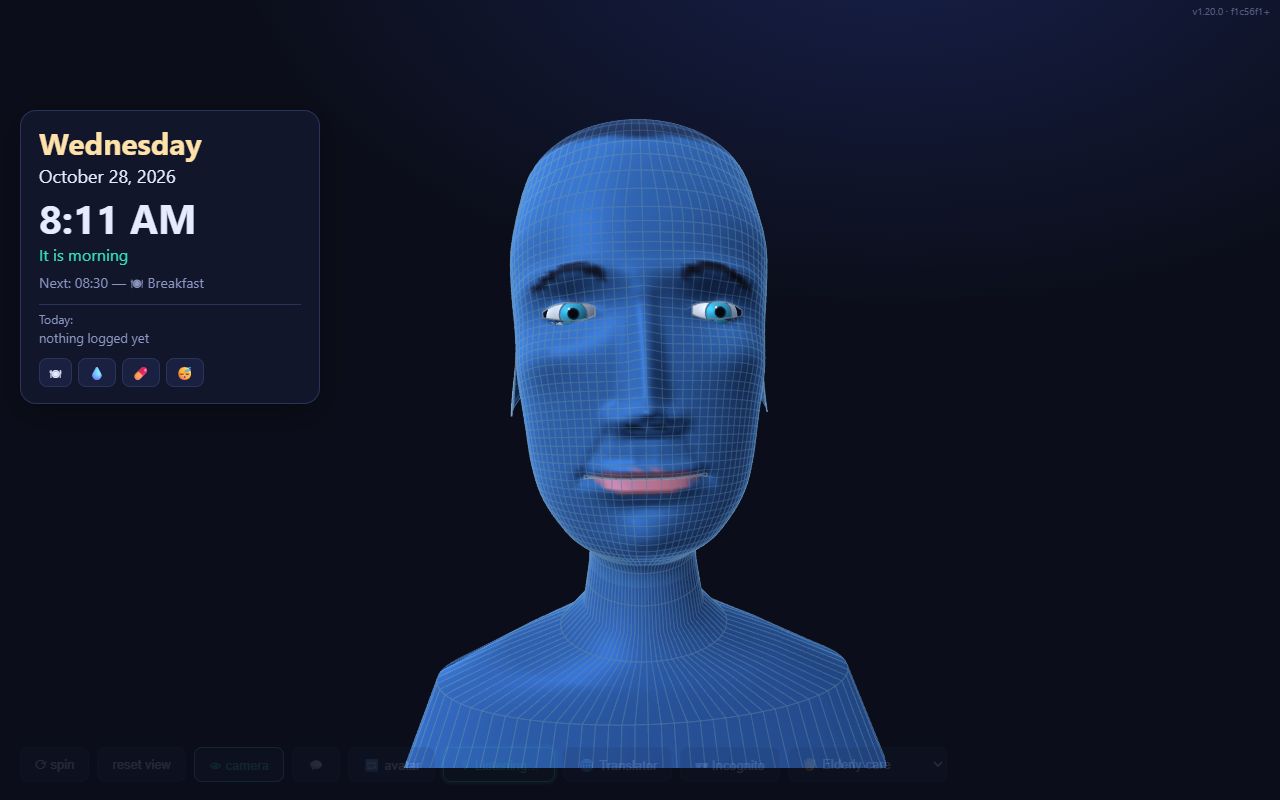
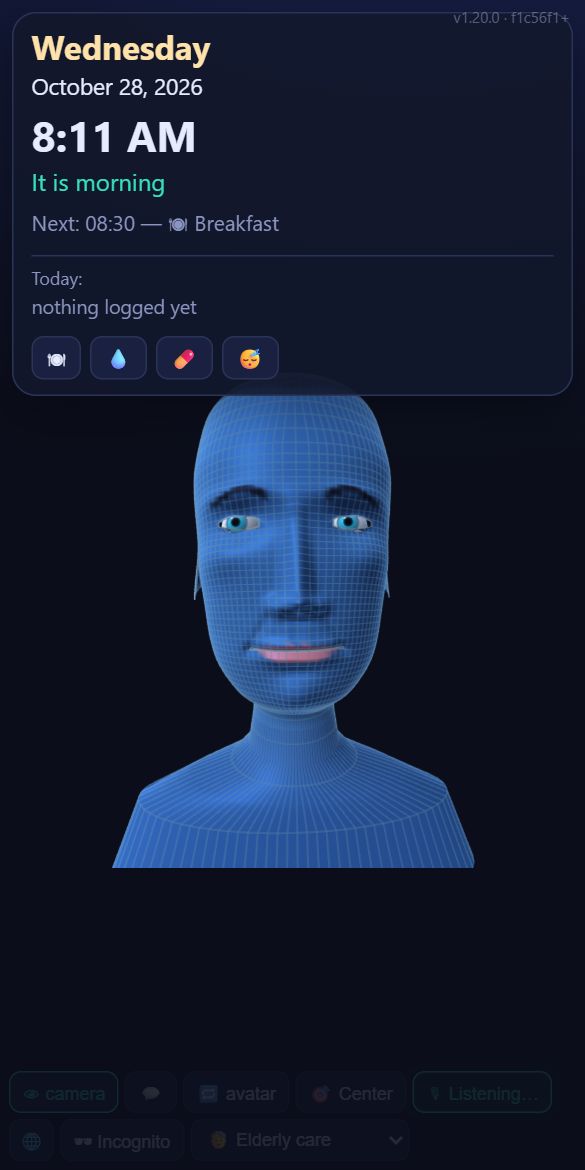
How do I log a meal, water or medicine?¿Cómo anoto una comida, agua o medicina?
Tap the buttons on the clock card: 🍽 ate · 💧 drank water · 💊 took medicine · 😴 rested — or just tell the avatar ("I had lunch"). The avatar uses this journal to answer "did I eat?" truthfully, and it goes into the daily summary.
Pulsa los botones de la tarjeta del reloj: 🍽 comió · 💧 bebió agua · 💊 tomó la medicina · 😴 descansó — o simplemente díselo al avatar ("ya almorcé"). El avatar usa este diario para responder "¿ya comí?" con la verdad, y entra en el resumen diario.
How does the person send a message to a caregiver?¿Cómo envía la persona un mensaje a un cuidador?
By voice, in any mode: "Tell Carlos to bring bread" / "Dile a Carlos que traiga pan". The avatar confirms and the message goes to that caregiver's phone app and/or Telegram, as text only. A photo is added only if that caregiver turned on "📷 photo" on their row in Elderly care. When the caregiver answers, the avatar reads the answer aloud at home.
Con la voz, en cualquier modo: "Dile a Carlos que traiga pan" / "Tell Carlos to bring bread". El avatar lo confirma y el mensaje va a la app y/o al Telegram de ese cuidador, solo como texto. Se añade una foto solo si ese cuidador activó "📷 photo" en su fila de Elderly care. Cuando el cuidador responde, el avatar lee la respuesta en voz alta en casa.
Alarms and reminders ring at the wrong timeLas alarmas y recordatorios suenan a otra hora
Check ⚙ Settings → 🕒 Time zone. Alarms, care reminders, check-ins, the daily journal and summary follow the family's time zone (Puerto Rico by default). Pick yours from the list, or press Use this device's time zone.
Revisa ⚙ Settings → 🕒 Time zone. Las alarmas, los recordatorios, las visitas, el diario y el resumen siguen la zona horaria de la familia (Puerto Rico por defecto). Elige la tuya en la lista o pulsa Use this device's time zone.
🏠 Home monitoring and 👶 babysitter🏠 Vigilancia del hogar y 👶 niñera
How does home monitoring work?¿Cómo funciona la vigilancia del hogar?
Before you leave, choose 🏠 Home monitoring (or say "watch the house while I'm out"). With the camera on, SysAiBrain sends a photo alert with a short description when:
- a person who is not a recognised family member appears;
- a loud noise well above the room's normal level is heard.
When a known family member arrives it tells you, and the avatar asks whether to stop monitoring. Alerts go to the caregiver app, Telegram/WhatsApp and email. Add the family in People I know first, so they are not reported as strangers.
Antes de salir, elige 🏠 Home monitoring (o di "vigila la casa mientras no estoy"). Con la cámara encendida, SysAiBrain envía una alerta con foto y una descripción corta cuando:
- aparece una persona que no es un familiar reconocido;
- se oye un ruido fuerte, muy por encima del nivel normal de la habitación.
Cuando llega alguien conocido de la familia te avisa, y el avatar pregunta si debe dejar de vigilar. Las alertas van a la app de cuidadores, Telegram/WhatsApp y correo. Agrega primero a la familia en People I know, para que no los reporte como desconocidos.
How does the babysitter mode work?¿Cómo funciona el modo niñera?
Set it up in ⚙ Settings → 👶 Babysitter (the baby's name, how long crying must last before an alert, how to soothe: soft voice, lullaby or both, and parents' instructions), then choose 👶 Babysitter. The device watches with the camera and listens for crying (the sound detection runs on the device, without internet). When the baby cries the parents get a photo alert, and the avatar soothes; when the baby calms down they get a "calmed down" message, and if crying goes on for minutes they are told again. Parents can send instructions and ask for /photo from Telegram or the caregiver app.
Configúralo en ⚙ Settings → 👶 Babysitter (el nombre del bebé, cuánto tiempo debe llorar antes de alertar, cómo calmarlo: voz suave, canción de cuna o ambas, e instrucciones de los padres) y elige 👶 Babysitter. El dispositivo vigila con la cámara y escucha si llora (la detección de sonido funciona en el dispositivo, sin internet). Cuando el bebé llora, los padres reciben una alerta con foto y el avatar lo calma; cuando se calma reciben un mensaje de "se calmó", y si el llanto sigue por minutos se les avisa otra vez. Los padres pueden enviar instrucciones y pedir /photo desde Telegram o la app de cuidadores.
📱 Caregiver app — SysAiBrain Care📱 App de cuidadores — SysAiBrain Care
What is SysAiBrain Care?¿Qué es SysAiBrain Care?
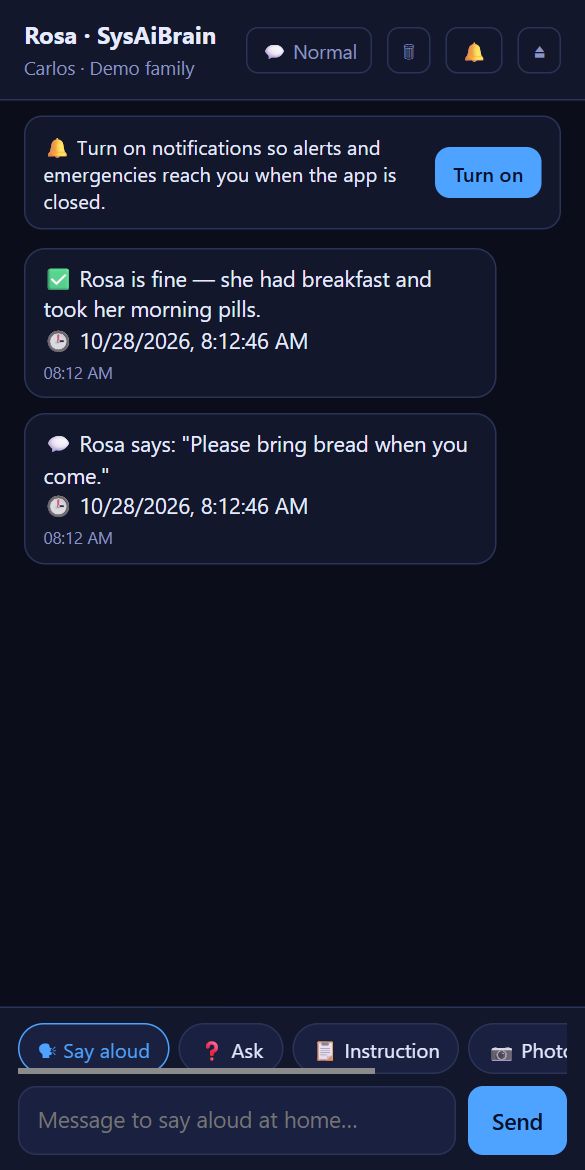
A free phone app for the people who care for someone at home — no Telegram needed. On the caregiver's phone it shows every alert and message from home, rings a loud alarm for emergencies until someone answers "I'm on my way", and lets the caregiver send messages back, ask questions, add instructions, ask for a photo, change the mode and set timers. It works in every mode. Caregiver phones are free, but each counts toward the family's 5 devices (more).
Una app gratis para el teléfono de quienes cuidan a alguien en casa — sin necesidad de Telegram. En el teléfono del cuidador muestra cada alerta y mensaje de la casa, suena una alarma fuerte en las emergencias hasta que alguien responde "Voy en camino", y le permite enviar mensajes, hacer preguntas, añadir instrucciones, pedir una foto, cambiar el modo y poner temporizadores. Funciona en todos los modos. Los teléfonos de cuidadores son gratis, pero cada uno cuenta en los 5 dispositivos de la familia (más).
How do I invite a caregiver to the app?¿Cómo invito a un cuidador a la app?
- The family owner opens ⚙ Settings → 🧓 Elderly care → Caregivers, adds the caregiver and presses 💾 Save care.
- Tap 📱 on that caregiver's row: a QR code, a link and an 8-character code appear.
- On the caregiver's phone: scan the QR with the camera, or open the link (send it by WhatsApp, SMS or email). Android users can first install the app from 📲 Caregiver / support app.
- The phone joins by itself and shows "connected". Allow notifications when it asks.
Each invitation works once, for 24 hours. One caregiver can use several phones (one invitation each). To remove a phone, use Disconnect on the caregiver's row, or ⏏ in the app.
- El dueño de la familia abre ⚙ Settings → 🧓 Elderly care → Caregivers, agrega al cuidador y pulsa 💾 Save care.
- Pulsa 📱 en la fila de ese cuidador: aparecen un código QR, un enlace y un código de 8 letras.
- En el teléfono del cuidador: escanea el QR con la cámara o abre el enlace (mándalo por WhatsApp, SMS o correo). En Android se puede instalar antes la app desde 📲 Caregiver / support app.
- El teléfono se conecta solo y muestra "conectado". Permite las notificaciones cuando lo pida.
Cada invitación sirve una vez, durante 24 horas. Un cuidador puede usar varios teléfonos (una invitación para cada uno). Para quitar un teléfono usa Disconnect en la fila del cuidador, o ⏏ en la app.
What can the caregiver do from the app?¿Qué puede hacer el cuidador desde la app?
- 🗣 Say aloud — the avatar says your message at home.
- ❓ Ask — the avatar asks the person and the answer comes back to your phone.
- 📋 Instruction — saved in the care instructions; the avatar follows it.
- 📷 Photo — a picture from the cameras at home, and
/statusfor how things are. - Mode button (top) — see and change the mode (no PIN needed).
- 📍 To: — with more than one avatar device at home, choose where your message, question or photo request goes: one room ("Kitchen"), 📢 All devices, or automatic (where someone was seen last). Each device's room is set in ⚙ Settings → 📱 This device.
- ⏰ Timer — in 5, 10, 15, 30, 60 minutes or at a time, with a label ("take the pills"): the avatar rings at home and says who set it; your phone is told when it rings.
- 🗑 clears the messages on this phone (open emergencies stay). 🔔 turns notifications on.
- 🗣 Say aloud (decir en voz alta) — el avatar dice tu mensaje en casa.
- ❓ Ask (preguntar) — el avatar le pregunta a la persona y la respuesta llega a tu teléfono.
- 📋 Instruction (instrucción) — se guarda en las instrucciones de cuidado; el avatar la sigue.
- 📷 Photo — una foto de las cámaras de la casa, y
/statuspara saber cómo están las cosas. - Botón de modo (arriba) — ver y cambiar el modo (sin PIN).
- 📍 Para: — con más de un dispositivo de avatar en casa, elige adónde va tu mensaje, pregunta o pedido de foto: un cuarto ("Cocina"), 📢 Todos los dispositivos, o automático (donde se vio a alguien por última vez). El cuarto de cada dispositivo se indica en ⚙ Settings → 📱 This device.
- ⏰ Timer (temporizador) — en 5, 10, 15, 30, 60 minutos o a una hora, con una etiqueta ("tomar las pastillas"): el avatar suena en casa y dice quién lo puso; tu teléfono recibe aviso cuando suena.
- 🗑 borra los mensajes en este teléfono (las emergencias abiertas se quedan). 🔔 activa las notificaciones.
Will the emergency alarm ring if the app is closed or the phone is locked?¿Suena la alarma de emergencia si la app está cerrada o el teléfono bloqueado?
Notifications arrive with the app closed and the phone locked, with strong vibration and as high-priority messages — if you allowed notifications. A web notification cannot loop a sound with the app closed, so an unanswered emergency is sent again every minute (up to 10 times); with the app open the alarm sound loops until you answer. Tips:
- Install the Android app (it uses its own high-priority notification channel) and allow notifications.
- Turn off battery optimisation for SysAiBrain Care / Chrome, and keep Do-Not-Disturb exceptions in mind.
- On iPhone, add the page to the Home Screen first (Share → Add to Home Screen) — iOS only allows web notifications that way.
Las notificaciones llegan con la app cerrada y el teléfono bloqueado, con vibración fuerte y como mensajes de alta prioridad — si permitiste las notificaciones. Una notificación web no puede repetir un sonido con la app cerrada, por eso una emergencia sin respuesta se envía otra vez cada minuto (hasta 10 veces); con la app abierta la alarma suena sin parar hasta que respondes. Consejos:
- Instala la app de Android (usa su propio canal de notificaciones de alta prioridad) y permite las notificaciones.
- Desactiva la optimización de batería para SysAiBrain Care / Chrome, y ten en cuenta las excepciones de No molestar.
- En iPhone, primero añade la página a la pantalla de inicio (Compartir → Añadir a pantalla de inicio) — iOS solo permite notificaciones web así.
🔔 Alerts, Telegram and WhatsApp🔔 Alertas, Telegram y WhatsApp
Who gets the alerts?¿Quién recibe las alertas?
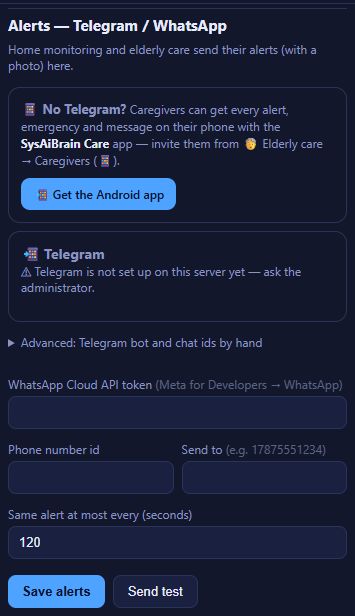
Guest plan: the account's email and the one caregiver phone. With a license: every caregiver app phone, Telegram and/or WhatsApp for the family and each caregiver, plus email. Set the family's recipients in ⚙ Settings → Alerts, and each caregiver's in 🧓 Elderly care. Send test checks the setup.
Plan invitado: el correo de la cuenta y el teléfono de un cuidador. Con licencia: todos los teléfonos con la app de cuidadores, Telegram y/o WhatsApp para la familia y cada cuidador, además del correo. Elige los destinatarios de la familia en ⚙ Settings → Alerts, y los de cada cuidador en 🧓 Elderly care. Send test comprueba la configuración.
How do I link Telegram?¿Cómo vinculo Telegram?
⚙ Settings → Alerts → Link a Telegram chat, then on the phone tap Open Telegram and press START (or send the /link CODE shown to the SysAiBrain bot). For a caregiver use the 📲 button on their row in 🧓 Elderly care. To stop alerts in a chat, send /unlink there. Telegram is included with a license.
⚙ Settings → Alerts → Link a Telegram chat, y en el teléfono pulsa Open Telegram and press START (o envía al bot de SysAiBrain el /link CÓDIGO que aparece). Para un cuidador usa el botón 📲 de su fila en 🧓 Elderly care. Para dejar de recibir alertas en un chat, envía /unlink ahí. Telegram viene con la licencia.
Telegram commandsComandos de Telegram
| Command | What it does |
|---|---|
/status | How things are at home, and the devices. |
/photo · /photo 2 | A photo from every camera · from device 2. |
/nodes | List the devices. |
/say 2 message | The avatar says it only on device 2. |
/rename 2 Kitchen | Rename device 2. |
/mute · /unmute | The avatar's voice off/on on all devices (add a number for one device). |
/language Spanish | Answer me in that language (/language auto = the language I write in). |
/board text · /board clear | Show text big on the screen at home. |
/music boleros · /radio WKAQ · /music stop | Play music or a radio station at home. |
/link CODE · /unlink | Link this chat · stop alerts here. |
/help | The list of commands. |
Or write in plain words, in any language: "Tell mom I'll be home at 6", "Remind her of the blood-pressure pill at 3", "Ask her if she had lunch", "Instruction: no sweets after 8 pm", "Turn on home monitoring", "Tell her on the kitchen tablet that dinner is ready".
| Comando | Qué hace |
|---|---|
/status | Cómo están las cosas en casa, y los dispositivos. |
/photo · /photo 2 | Una foto de cada cámara · del dispositivo 2. |
/nodes | Lista los dispositivos. |
/say 2 mensaje | El avatar lo dice solo en el dispositivo 2. |
/rename 2 Cocina | Cambia el nombre del dispositivo 2. |
/mute · /unmute | Silencia / activa la voz del avatar en todos los dispositivos (añade un número para uno solo). |
/language Spanish | Respóndeme en ese idioma (/language auto = el idioma en que escribo). |
/board texto · /board clear | Muestra un texto en grande en la pantalla de casa. |
/music boleros · /radio WKAQ · /music stop | Pone música o una emisora de radio en casa. |
/link CÓDIGO · /unlink | Vincula este chat · deja de enviar alertas aquí. |
/help | La lista de comandos. |
O escribe con tus palabras, en cualquier idioma: "Dile a mamá que llego a las 6", "Recuérdale la pastilla de la presión a las 3", "Pregúntale si almorzó", "Instrucción: nada de dulces después de las 8", "Activa la vigilancia del hogar", "Dile en la tablet de la cocina que la cena está lista".
Can alerts go to WhatsApp?¿Las alertas pueden ir a WhatsApp?
Yes, with your own WhatsApp Cloud API account from Meta for Developers: in ⚙ Settings → Alerts enter the token, the phone number id and the number to send to. Meta may charge for messages and limits what a business number can send. Most families find the free caregiver app or Telegram easier.
Sí, con tu propia cuenta de WhatsApp Cloud API de Meta for Developers: en ⚙ Settings → Alerts escribe el token, el id del número y el número al que enviar. Meta puede cobrar por los mensajes y limita lo que puede enviar un número de empresa. A la mayoría de las familias les resulta más fácil la app de cuidadores gratis o Telegram.
⏰ Alarms and timers⏰ Alarmas y temporizadores
How do I set, stop or cancel an alarm?¿Cómo pongo, paro o cancelo una alarma?
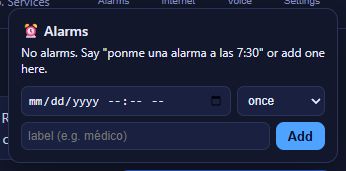
- By voice: "Set an alarm at 7:30", "Wake me up every weekday at 6", "Remind me in 20 minutes to turn off the oven", "Cancel the 7:30 alarm", "What alarms do I have?"
- By hand: ⏰ Alarms at the top of the chat → date and time, once / every day / weekdays, a label → Add. ✕ deletes one.
- When it rings: a big screen with Stop and Snooze, and the avatar says the label.
- Caregivers can set one from the app (⏰ Timer) or Telegram ("remind her at 3…").
Alarms ring on the devices at home that are open. A phone or tablet that is asleep or has the app closed cannot ring — keep the home device on (see keep it on).
- Con la voz: "Ponme una alarma a las 7:30", "Despiértame los días de semana a las 6", "Recuérdame en 20 minutos apagar el horno", "Cancela la alarma de las 7:30", "¿Qué alarmas tengo?"
- A mano: ⏰ Alarms arriba del chat → fecha y hora, una vez / todos los días / días de semana, una etiqueta → Add. ✕ borra una.
- Cuando suena: una pantalla grande con Stop (parar) y Snooze (posponer), y el avatar dice la etiqueta.
- Los cuidadores pueden poner una desde la app (⏰ Timer) o desde Telegram ("recuérdale a las 3…").
Las alarmas suenan en los dispositivos de la casa que están abiertos. Un teléfono o tablet dormido o con la app cerrada no puede sonar — mantén encendido el dispositivo de casa (mira mantenerlo encendido).
🎵 Music and the board🎵 Música y pizarra
How do I play music, or show something on the board?¿Cómo pongo música o muestro algo en la pizarra?
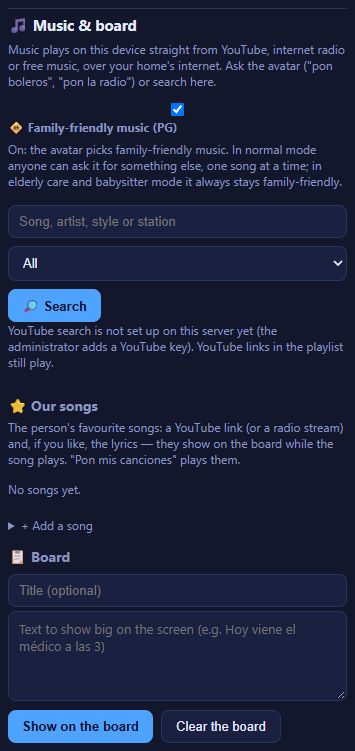
Ask the avatar: "play boleros", "put on the radio", "play my songs", "stop the music". Music plays on the device itself, straight from YouTube (in its official player), internet radio or free music, over your home's internet. Songs are chosen to be family-friendly. In ⚙ Settings → 🎵 Music & board you can search, and save the person's favourite songs with their lyrics (you type them) — the lyrics show big on the board while the song plays.
The avatar also uses the board for lists, recipes and the day's plan. Caregivers can write on it from Telegram with /board text, play music with /music or /radio, and stop it with /music stop.
Pídeselo al avatar: "pon boleros", "pon la radio", "pon mis canciones", "para la música". La música suena en el mismo dispositivo, directamente desde YouTube (en su reproductor oficial), la radio por internet o música gratuita, con el internet de tu casa. Las canciones se eligen aptas para toda la familia. En ⚙ Settings → 🎵 Music & board puedes buscar y guardar las canciones favoritas de la persona con su letra (la escribes tú) — la letra se muestra en grande en la pizarra mientras suena.
El avatar también usa la pizarra para listas, recetas y el plan del día. Los cuidadores pueden escribir en ella desde Telegram con /board texto, poner música con /music o /radio y pararla con /music stop.
🌐 Translator🌐 Traductor
How do I use the avatar as an interpreter?¿Cómo uso el avatar como intérprete?
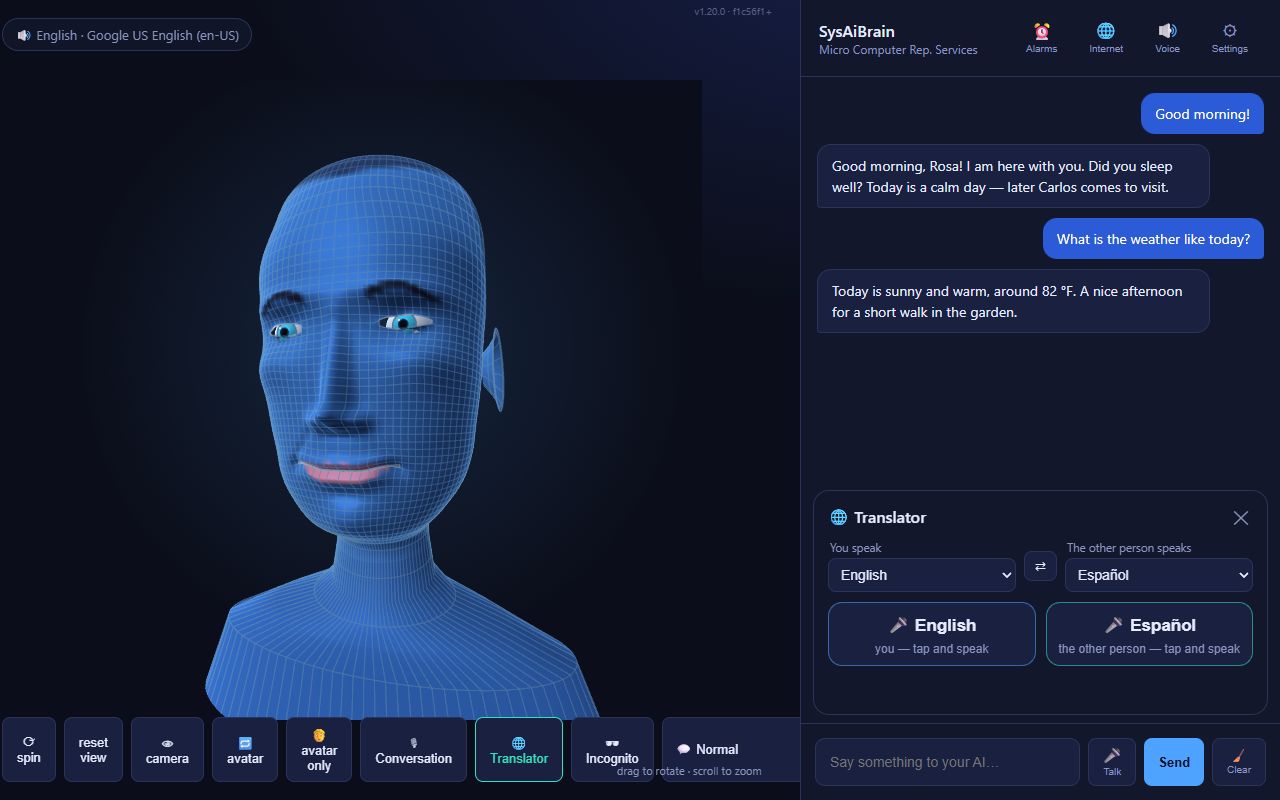
- Tap 🌐 Translator.
- Choose You speak and The other person speaks (English, Spanish, Portuguese, French, Italian, German); ⇄ swaps them.
- Tap your big button and speak; the avatar says it in the other language. The other person taps their button and speaks; you hear it in yours.
- ✕ closes the translator; the normal conversation comes back.
It translates only — it does not answer. Nothing is saved. It works on this device only (other devices keep their mode), on every licensed plan (not on the guest plan). For medical, legal or official matters use a professional interpreter.
- Pulsa 🌐 Translator.
- Elige You speak (tú hablas) y The other person speaks (la otra persona habla) — inglés, español, portugués, francés, italiano, alemán; ⇄ los intercambia.
- Pulsa tu botón grande y habla; el avatar lo dice en el otro idioma. La otra persona pulsa su botón y habla; tú lo oyes en el tuyo.
- ✕ cierra el traductor; vuelve la conversación normal.
Solo traduce — no responde. No se guarda nada. Funciona solo en este dispositivo (los demás siguen en su modo), en todos los planes con licencia (no en el plan invitado). Para asuntos médicos, legales u oficiales usa un intérprete profesional.
📍 Devices, phones and tablets📍 Dispositivos, teléfonos y tablets
Avatar devices and caregiver devices — what is the difference?Dispositivos del avatar y dispositivos de cuidador — ¿cuál es la diferencia?
Each device has a role. An 🧑 avatar device stands in front of the person (the elderly person, the child, the patient): the avatar, the camera, the microphone and the mode run there, all for that person. A 👩⚕️ caregiver device is the phone or PC of someone who looks after them: it opens the caregiver view (like the SysAiBrain Care app) — alerts, messages and instructions to the avatar (typed or 🎤 spoken), 📋 a copy of each avatar's board and, for the owner, ⚙ the account administration. No avatar, camera or microphone runs there.
A new device gets a role by itself (a phone → caregiver; a tablet, a PC or the avatar app → avatar). Change it in ⚙ Settings → 📱 This device (the avatar's name is shown next to it) or, as the owner, for any device in 📍 Devices. Messages, questions, photos and check-ins only go to avatar devices. Caregiver devices do not use an extra place in the device limit.
Cada dispositivo tiene un papel. Un 🧑 dispositivo del avatar está frente a la persona (la persona mayor, el niño, el paciente): allí funcionan el avatar, la cámara, el micrófono y el modo, todo para esa persona. Un 👩⚕️ dispositivo de cuidador es el teléfono o la PC de quien la cuida: abre la vista del cuidador (como la app SysAiBrain Care) — alertas, mensajes e instrucciones al avatar (escritos o 🎤 dictados), 📋 una copia de la pizarra de cada avatar y, para el dueño, ⚙ la administración de la cuenta. Allí no funcionan el avatar, la cámara ni el micrófono.
Un dispositivo nuevo recibe un papel solo (un teléfono → cuidador; una tablet, una PC o la app del avatar → avatar). Cámbialo en ⚙ Configuración → 📱 Este dispositivo (allí se ve el nombre del avatar) o, como dueño, para cualquier dispositivo en 📍 Dispositivos. Los mensajes, preguntas, fotos y saludos solo van a los dispositivos del avatar. Los dispositivos de cuidador no ocupan un lugar más en el límite de dispositivos.
The avatar is slow or stops answering on my PC or tabletEl avatar va lento o deja de responder en mi PC o tablet
On modest PCs and tablets the avatar, the camera checks and the listening share the same processor. ⚙ Settings → 📱 This device → ⚡ Speed: Automatic (recommended) switches to Light on modest devices or when the page stalls — simpler drawing, fewer frames and slower camera checks, so listening stays quick. Choose Light yourself if it is still slow.
📊 Speed check measures for 10 seconds (frames per second, stalls, camera and recognition times) and copies the result: send it to support with your question. In 🏠 home monitoring the avatar is not drawn at all, so all the time goes to watching the house.
It also shows the last spoken turns: the pause after you stop talking, recognising who talks, how long the AI takes to start answering and when the voice starts. The avatar starts saying the first sentence while the rest of the answer is still being written, and a laptop with slow voice or camera recognition switches to Light by itself. Keep a laptop plugged in (on battery it slows down a lot).
En PCs y tablets modestas el avatar, las revisiones de la cámara y la escucha comparten el mismo procesador. ⚙ Configuración → 📱 Este dispositivo → ⚡ Velocidad: Automática (recomendada) pasa a Ligera en dispositivos modestos o cuando la página se traba — dibujo más simple, menos cuadros y revisiones de cámara más lentas, para que la escucha siga rápida. Elige Ligera tú mismo si sigue lento.
📊 Prueba de velocidad mide durante 10 segundos (cuadros por segundo, trabas, tiempos de cámara y reconocimiento) y copia el resultado: envíalo a soporte con tu pregunta. En 🏠 vigilancia del hogar el avatar no se dibuja, así que todo el tiempo va a vigilar la casa.
También muestra los últimos turnos hablados: la pausa después de que dejas de hablar, el reconocimiento de quién habla, cuánto tarda la IA en empezar a responder y cuándo empieza la voz. El avatar empieza a decir la primera oración mientras el resto de la respuesta todavía se está escribiendo, y una laptop lenta reconociendo la voz o la cámara pasa sola a Ligera. Mantén la laptop conectada al cargador (con batería se pone mucho más lenta).
Can a caregiver see or hear the avatar's conversation?¿Un cuidador puede ver o escuchar la conversación del avatar?
Only when the family owner allows it — the person's privacy comes first. The owner ticks who may in ⚙ Settings → 📍 Devices → 💬 Who can see and hear the conversations (the owner always can). Those caregivers get 💬 in the caregiver app: the recent conversation on one avatar device, or 🎧 Listen live — their phone reads aloud what the avatar says there and shows what the person said, as it happens. On Telegram: /convo (or /convo 2 for device 2). Only text: no microphone audio leaves the home. Every look is noted in the care log.
Solo cuando el dueño de la familia lo permite — la privacidad de la persona va primero. El dueño marca quién puede en ⚙ Configuración → 📍 Dispositivos → 💬 Quién puede ver y escuchar las conversaciones (el dueño siempre puede). Esos cuidadores tienen 💬 en la app de cuidadores: la conversación reciente en un dispositivo del avatar, o 🎧 Escuchar en vivo — su teléfono lee en voz alta lo que el avatar dice allí y muestra lo que dijo la persona, en el momento. En Telegram: /convo (o /convo 2 para el dispositivo 2). Solo texto: el audio del micrófono no sale de la casa. Cada consulta queda anotada en el registro de cuidado.
How do I add another tablet or phone at home?¿Cómo agrego otra tablet o teléfono en casa?
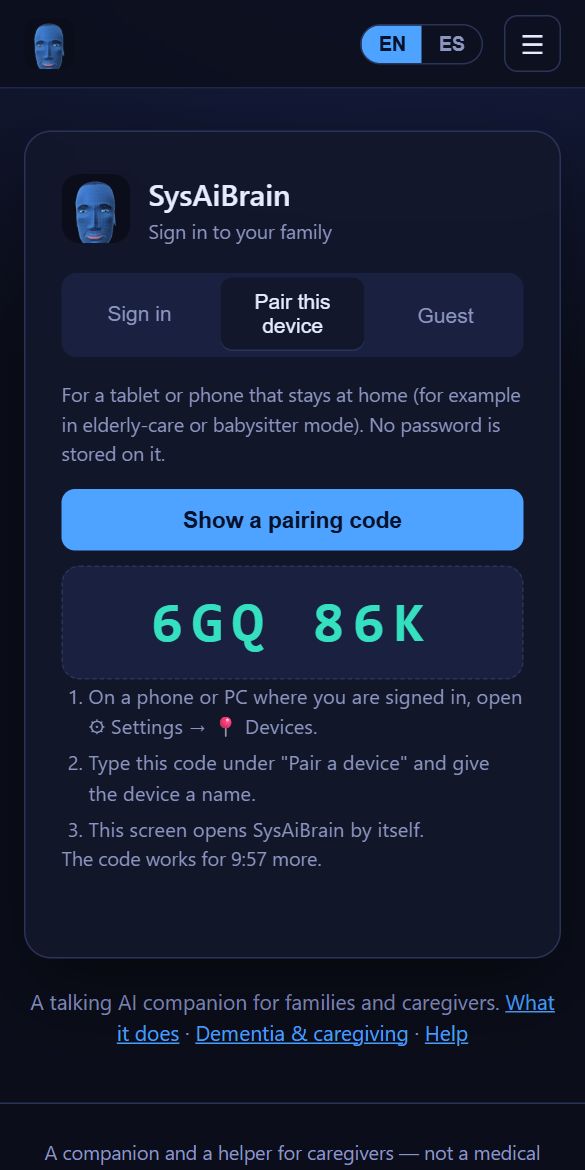
- On the new device open sysaibrain.com/login → Pair this device → Show a pairing code (it works for 10 minutes).
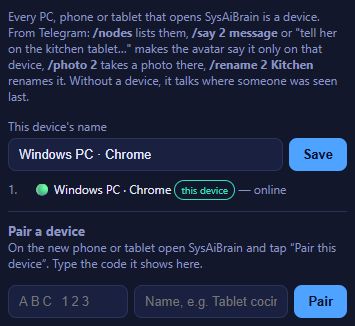
- On a phone or PC where you are signed in: ⚙ Settings → 📍 Devices → Pair a device, type the code and a name ("Kitchen tablet") → Pair.
- The new device opens SysAiBrain by itself. No password is stored on it.
Pairing needs a license, and room in the family's 5 devices. Each avatar device after the first is an extra avatar device on your license.
- En el dispositivo nuevo abre sysaibrain.com/login → Pair this device → Show a pairing code (vale 10 minutos).
- En un teléfono o PC donde tengas la sesión abierta: ⚙ Settings → 📍 Devices → Pair a device, escribe el código y un nombre ("Tablet cocina") → Pair.
- El dispositivo nuevo abre SysAiBrain solo. No se guarda ninguna contraseña en él.
Vincular necesita una licencia y espacio en los 5 dispositivos de la familia. Cada dispositivo de avatar después del primero es un dispositivo de avatar adicional en tu licencia.
How many devices can a family have?¿Cuántos dispositivos puede tener una familia?
Up to 5 devices in total, counting the main avatar device, the other avatar devices (tablets, PCs) and the caregiver app phones. For example: 1 tablet + 4 caregiver phones, or 2 tablets + 3 phones. Settings shows "Devices in use: X of 5". The guest plan allows 2: this device and one caregiver phone. Signing in on a phone or PC with your password to manage the account does not use a device.
With more than one avatar, say where each one is in ⚙ Settings → 📱 This device → 📍 Where is this device? (Living room, Kitchen, Master bedroom…). Then a caregiver can send a message, ask, or get the status of one room — or of all devices — from the caregiver app (📍 To:) or Telegram (/say kitchen …, /say all …), and you can ask the avatar on one device to tell someone in another room ("tell dad in the kitchen that dinner is ready").
Hasta 5 dispositivos en total, contando el dispositivo de avatar principal, los otros dispositivos de avatar (tablets, PCs) y los teléfonos con la app de cuidadores. Por ejemplo: 1 tablet + 4 teléfonos de cuidadores, o 2 tablets + 3 teléfonos. Settings muestra "Devices in use: X of 5" (dispositivos en uso). El plan invitado permite 2: este dispositivo y un teléfono de cuidador. Entrar con tu contraseña en un teléfono o PC para administrar la cuenta no usa un dispositivo.
Con más de un avatar, indica dónde está cada uno en ⚙ Settings → 📱 This device → 📍 Where is this device? (Sala, Cocina, Habitación principal…). Así un cuidador puede enviar un mensaje, preguntar o ver el estado de un cuarto — o de todos los dispositivos — desde la app del cuidador (📍 Para:) o Telegram (/say cocina …, /say all …), y puedes pedirle al avatar de un dispositivo que le diga algo a alguien en otro cuarto ("dile a papá en la cocina que la cena está lista").
Is there an Android app?¿Hay una app de Android?
For caregivers: the SAB Care · caregiver / support app — download it from the sign-in page (📲 Android apps) or with 📲 Caregiver / support app in ⚙ Settings → Alerts or Elderly care (direct link). It installs from the file, so Android may ask you to allow installing apps from Chrome.
For the device at home: open sysaibrain.com in Chrome → ⋮ → Add to Home screen (or Install app): it then opens full-screen like an app. Or install the SysAiBrain app (avatar) for the home tablet or phone — it is on the sign-in page under 📲 Android apps and in ⚙ Settings → 📱 This device → 📲 Download the avatar app (direct link).
Para cuidadores: la SAB Care · app del cuidador / soporte — descárgala en la página de entrada (📲 Apps de Android) o con 📲 Caregiver / support app en ⚙ Settings → Alerts o Elderly care (enlace directo). Se instala desde el archivo, así que Android puede pedirte permitir instalar apps desde Chrome.
Para el dispositivo de casa: abre sysaibrain.com en Chrome → ⋮ → Añadir a pantalla de inicio (o Instalar app): se abre a pantalla completa como una app. O instala la App SysAiBrain (avatar) en la tablet o el teléfono de casa — está en la página de entrada en 📲 Apps de Android y en ⚙ Settings → 📱 This device → 📲 Download the avatar app (enlace directo).
Does it work on iPhone and iPad?¿Funciona en iPhone y iPad?
Yes, in Safari. iOS only lets a page speak after a tap, so tap the screen once when it opens. On iPhone one app at a time can use the microphone, so the avatar listens phrase by phrase. For caregiver notifications on iPhone, add the page to the Home Screen (Share → Add to Home Screen) and open it from there. There is no App Store app. For a device that stays on all day, an Android tablet or a PC works best.
Sí, en Safari. iOS solo deja hablar a una página después de un toque, así que toca la pantalla una vez al abrirla. En iPhone solo una app a la vez puede usar el micrófono, así que el avatar escucha frase por frase. Para las notificaciones de cuidadores en iPhone, añade la página a la pantalla de inicio (Compartir → Añadir a pantalla de inicio) y ábrela desde ahí. No hay app en la App Store. Para un dispositivo que pasa todo el día encendido, funciona mejor una tablet Android o una PC.
The small version number turned orangeEl número de versión pequeño se puso naranja
A newer version of SysAiBrain is ready. Tap the version (top corner) to reload, or just reload the page. Devices at home update the next time they reload.
Hay una versión más nueva de SysAiBrain. Toca la versión (esquina de arriba) para recargar, o recarga la página. Los dispositivos de casa se actualizan la próxima vez que recargan.
💳 Plans, prices and license💳 Planes, precios y licencia
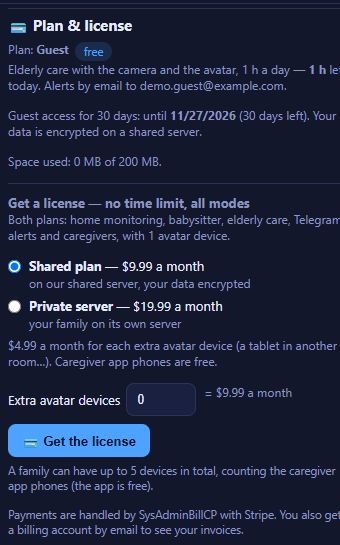
Which plans are there and what do they include?¿Qué planes hay y qué incluyen?
| Guest | Shared plan | Private server | |
|---|---|---|---|
| Price | Free, 30 days | $9.99 a month or $107.89 a year (save 10%) | $19.99 a month or $215.89 a year (save 10%) |
| Time | 1 hour a day | No limit | No limit |
| Avatar devices | 1 (this device) | 1 included · $4.99 a month (or $53.89 a year) each extra | 1 included · $4.99 a month (or $53.89 a year) each extra |
| Caregiver app phones | 1 | Free | Free |
| Devices in total | 2 | Up to 5 | Up to 5 |
| Modes | Elderly care | All | All |
| Alerts | Email + caregiver app | App, Telegram, WhatsApp, email | App, Telegram, WhatsApp, email |
| Translator, family members | — | ✓ | ✓ |
| Storage | 200 MB | 2 GB | Your own server |
| Where | Shared server, data encrypted | Shared server, data encrypted | Your family's own private server |
Prices are in US dollars and may change; the current ones always show in ⚙ Settings → 💳 Plan & license before you pay.
| Invitado | Plan compartido | Servidor privado | |
|---|---|---|---|
| Precio | Gratis, 30 días | $9.99 al mes o $107.89 al año (ahorras 10%) | $19.99 al mes o $215.89 al año (ahorras 10%) |
| Tiempo | 1 hora al día | Sin límite | Sin límite |
| Dispositivos de avatar | 1 (este dispositivo) | 1 incluido · $4.99 al mes (o $53.89 al año) cada adicional | 1 incluido · $4.99 al mes (o $53.89 al año) cada adicional |
| Teléfonos con la app de cuidadores | 1 | Gratis | Gratis |
| Dispositivos en total | 2 | Hasta 5 | Hasta 5 |
| Modos | Cuidado de mayores | Todos | Todos |
| Alertas | Correo + app de cuidadores | App, Telegram, WhatsApp, correo | App, Telegram, WhatsApp, correo |
| Traductor, miembros de la familia | — | ✓ | ✓ |
| Espacio | 200 MB | 2 GB | Tu propio servidor |
| Dónde | Servidor compartido, datos cifrados | Servidor compartido, datos cifrados | El servidor privado de tu familia |
Los precios son en dólares de EE. UU. y pueden cambiar; los actuales siempre se ven en ⚙ Settings → 💳 Plan & license antes de pagar.
How do I get a license and pay?¿Cómo consigo una licencia y pago?
- The family owner opens ⚙ Settings → 💳 Plan & license (or the button on the "time is used" screen).
- Choose Pay monthly or Pay yearly (a year up front, 10% less), Shared plan or Private server, and how many extra avatar devices (0 if you have one tablet). The total shows next to it.
- Press 💳 Get the license: you pay securely with Stripe (card details never reach SysAiBrain).
- The account becomes a full account as soon as the payment is confirmed. You also get a billing account by email, with your invoices.
To add avatar devices later use Add avatar devices in the same place. To move from the shared plan to a private server, open a ticket.
- El dueño de la familia abre ⚙ Settings → 💳 Plan & license (o el botón de la pantalla "se acabó el tiempo").
- Elige Pagar cada mes o Pagar cada año (un año por adelantado, un 10% menos), Plan compartido o Servidor privado, y cuántos dispositivos de avatar adicionales (0 si tienes una tablet). El total se ve al lado.
- Pulsa 💳 Get the license: pagas de forma segura con Stripe (los datos de la tarjeta nunca llegan a SysAiBrain).
- La cuenta pasa a ser completa en cuanto se confirma el pago. También recibes por correo una cuenta de facturación con tus facturas.
Para añadir dispositivos de avatar después usa Add avatar devices en el mismo lugar. Para pasar del plan compartido a un servidor privado, abre un ticket.
Can I pay for a whole year? Can I switch later?¿Puedo pagar un año entero? ¿Puedo cambiar después?
Yes. Both plans can be paid monthly or yearly. Yearly is paid a full year up front and costs 10% less than twelve months: $107.89 a year for the shared plan, $215.89 for the private server and $53.89 for each extra avatar device.
- Switching: ⚙ Settings → 💳 Plan & license → Switch to yearly billing (or back to monthly). The change starts on your next renewal; nothing is charged or refunded for the current period. You can undo it before that date.
- Extra avatar devices follow your license: on a yearly license they are yearly too. A device added in the middle of a period is charged only for the time left until your license renews, so everything renews on the same day.
- Refunds: a yearly payment can be refunded if you ask within 30 days of paying it (open a ticket); after 30 days yearly payments are not refundable. Monthly payments are not refundable. See the Terms.
Sí. Los dos planes se pueden pagar cada mes o cada año. El pago anual es un año completo por adelantado y cuesta un 10% menos que doce meses: $107.89 al año el plan compartido, $215.89 el servidor privado y $53.89 cada dispositivo de avatar adicional.
- Cambiar: ⚙ Settings → 💳 Plan & license → Cambiar al pago anual (o volver al mensual). El cambio empieza en tu próxima renovación; no se cobra ni se reembolsa nada del período en curso. Puedes deshacerlo antes de esa fecha.
- Los dispositivos de avatar adicionales siguen a tu licencia: con una licencia anual también son anuales. Uno añadido a mitad de un período se cobra solo por el tiempo que falta hasta que tu licencia se renueve, así todo se renueva el mismo día.
- Reembolsos: un pago anual se puede reembolsar si lo pides dentro de los 30 días siguientes al pago (abre un ticket); pasados 30 días los pagos anuales no son reembolsables. Los pagos mensuales no son reembolsables. Mira los Términos.
Can I buy the license in the Android app from Google Play?¿Puedo comprar la licencia en la app de Android de Google Play?
Yes. In the SysAiBrain and SysAiBrain Care apps installed from Google Play, ⚙ Settings → 💳 Plan & license (in the caregiver app: the 💳 button) sells the plans as a Google Play subscription, monthly or yearly, at the price Google Play shows in your currency. A caregiver can pay for the family from the caregiver app.
- Extra avatar devices are a second subscription (1 to 4 devices). Change the number, the plan or monthly ↔ yearly in the same screen: the change is immediate and Google credits the unused time.
- Cancel in Google Play → Subscriptions; the license stays on until the end of the period already paid. Refunds of Google Play payments go through Google Play.
- A license paid through Google Play is changed in the app, not on the website; a license paid by card is changed on the website. Your family's data is the same either way.
Sí. En las apps SysAiBrain y SysAiBrain Care instaladas desde Google Play, ⚙ Configuración → 💳 Plan y licencia (en la app del cuidador: el botón 💳) vende los planes como una suscripción de Google Play, mensual o anual, al precio que Google Play muestra en tu moneda. Un cuidador puede pagar por la familia desde la app del cuidador.
- Los dispositivos de avatar adicionales son una segunda suscripción (de 1 a 4 dispositivos). Cambia el número, el plan o mensual ↔ anual en la misma pantalla: el cambio es inmediato y Google abona el tiempo no usado.
- Cancela en Google Play → Suscripciones; la licencia sigue activa hasta el final del período ya pagado. Los reembolsos de pagos con Google Play se hacen a través de Google Play.
- Una licencia pagada con Google Play se cambia en la app, no en la web; una licencia pagada con tarjeta se cambia en la web. Los datos de tu familia son los mismos en los dos casos.
"The guest period has ended" — what now?"The guest period has ended" — ¿y ahora?
Guest accounts can be used for 30 days from sign-up (⚙ Settings → 💳 Plan & license shows the date). After that, get a license from that screen to keep using SysAiBrain — your data is kept, encrypted, and you can still download it. If you need a few more days to decide, open a ticket.
Las cuentas de invitado se pueden usar 30 días desde el registro (⚙ Settings → 💳 Plan & license muestra la fecha). Después, consigue una licencia desde esa pantalla para seguir usando SysAiBrain — tus datos se conservan, cifrados, y todavía puedes descargarlos. Si necesitas unos días más para decidir, abre un ticket.
"Today's time is used" — what now?"Today's time is used" — ¿y ahora?
The guest plan has 1 hour a day; the time counts while the app is open on the device (the top of the screen shows how much is left). It opens again at midnight (family time zone) by itself. For no time limit, get a license from that screen or ⚙ Settings → 💳 Plan & license.
El plan invitado tiene 1 hora al día; el tiempo cuenta mientras la app está abierta en el dispositivo (arriba en la pantalla se ve cuánto queda). Se vuelve a abrir sola a medianoche (hora de la familia). Para no tener límite, consigue una licencia desde esa pantalla o en ⚙ Settings → 💳 Plan & license.
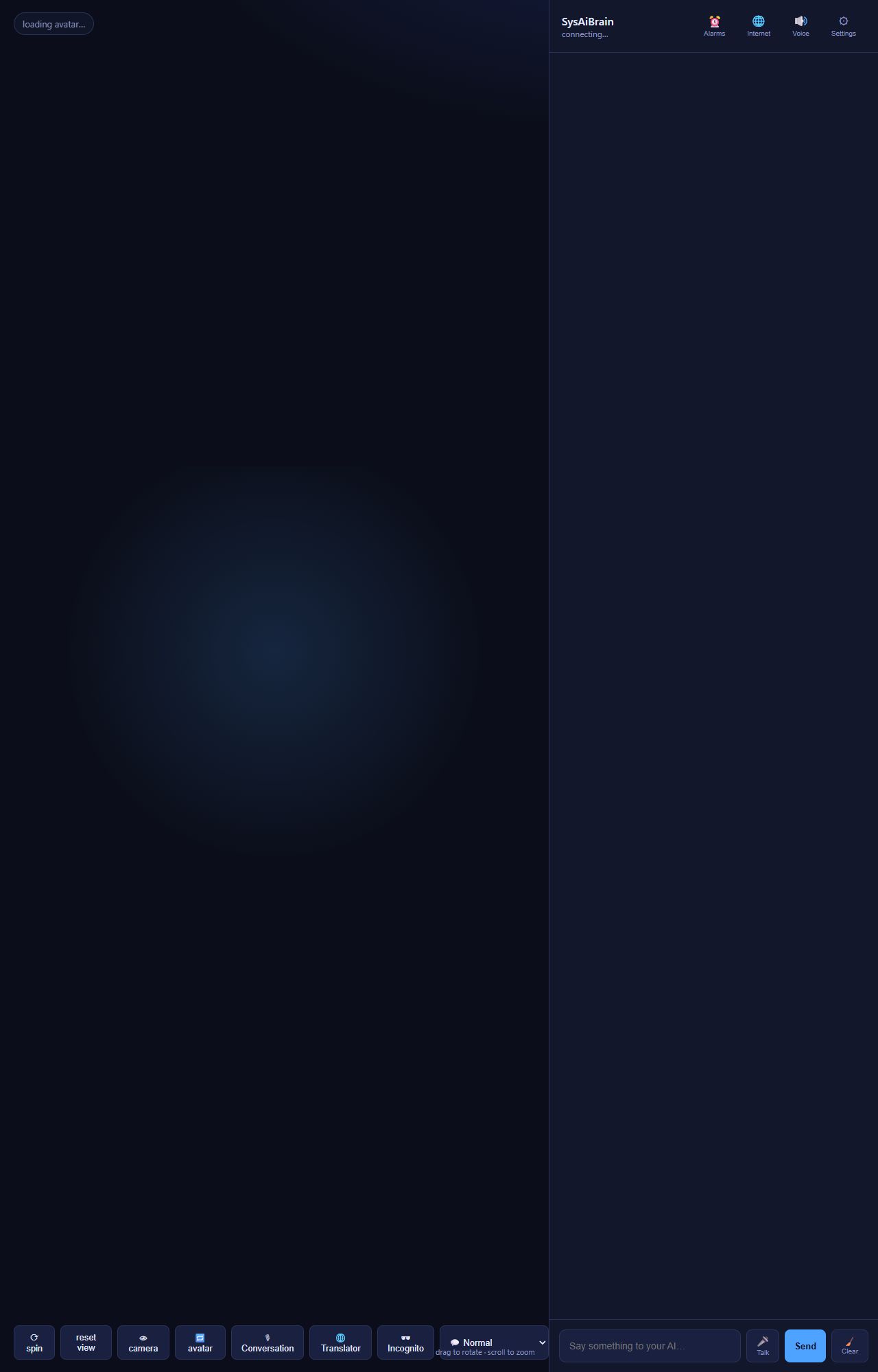
I paid but the account is still a guestPagué pero la cuenta sigue como invitado
Confirmation can take a few minutes. Open ⚙ Settings → 💳 Plan & license → Check again. If it is still not active after 15 minutes, open a ticket with the invoice number.
La confirmación puede tardar unos minutos. Abre ⚙ Settings → 💳 Plan & license → Check again. Si a los 15 minutos sigue sin activarse, abre un ticket con el número de factura.
Private server: how does it work?Servidor privado: ¿cómo funciona?
After your private-server license is active we set up your family's own server, at an address like yourname.sysaibrain.com, and move your data there (encrypted, with its own daily backups). We email you when it is ready — usually within one business day; until then you keep using SysAiBrain as before. Afterwards you can still sign in at sysaibrain.com: it sends you to your server. Use the same username and password; tablets and phones that stay at home must be paired again once (Pair this device), and caregiver phones invited again. Telegram keeps working with the same bot. The shared plan needs none of this: your family stays on our shared server, with its data encrypted with its own key.
Cuando tu licencia de servidor privado está activa preparamos el servidor propio de tu familia, en una dirección como tunombre.sysaibrain.com, y movemos tus datos allí (cifrados, con sus propias copias diarias). Te avisamos por correo cuando está listo — normalmente en un día laborable; mientras tanto sigues usando SysAiBrain como siempre. Después puedes seguir entrando por sysaibrain.com: te lleva a tu servidor. Usa el mismo usuario y contraseña; las tablets y teléfonos que se quedan en casa se vinculan otra vez una sola vez (Pair this device), y los teléfonos de cuidadores se invitan otra vez. Telegram sigue funcionando con el mismo bot. El plan compartido no necesita nada de esto: tu familia se queda en nuestro servidor compartido, con sus datos cifrados con su propia llave.
How do I see invoices or cancel?¿Cómo veo las facturas o cancelo?
⚙ Settings → 💳 Plan & license → Invoices opens your billing account: invoices, payment method and the subscription. To cancel, cancel there or open a ticket. The license stays active until the end of the paid period; afterwards the account returns to the guest plan (with its limits) and a private server may be stopped. Your data is kept: you can download it, come back with a new license, or ask us to delete it.
⚙ Settings → 💳 Plan & license → Invoices abre tu cuenta de facturación: facturas, forma de pago y la suscripción. Para cancelar, cancela ahí o abre un ticket. La licencia sigue activa hasta el final del período pagado; después la cuenta vuelve al plan invitado (con sus límites) y un servidor privado puede detenerse. Tus datos se conservan: puedes descargarlos, volver con una licencia nueva o pedirnos que los borremos.
⚠️ Limits, warnings and constraints⚠️ Límites, advertencias y restricciones
Is SysAiBrain a medical device or an emergency service?¿SysAiBrain es un dispositivo médico o un servicio de emergencias?
No. It is a companion and a helper for families and caregivers. It does not diagnose, treat or monitor any illness, it does not call emergency services, and it does not replace professional care, a medical alert device, or a person checking in. In an emergency call 911 or your local emergency number.
No. Es un compañero y una ayuda para familias y cuidadores. No diagnostica, trata ni vigila ninguna enfermedad, no llama a los servicios de emergencia y no sustituye la atención profesional, un dispositivo de alerta médica ni a una persona que visite. En una emergencia llama al 911 o a tu número local de emergencias.
What SysAiBrain needs to work — and what can stop itLo que SysAiBrain necesita para funcionar — y lo que puede detenerlo
- The page must be open and the device awake for monitoring, alerts, alarms and reminders at home. A closed app, a sleeping tablet, a dead battery, a power cut or no internet stops it — and then no alert can be sent.
- Internet is needed for answers, voices on some devices, alerts and music. Crying detection works offline, but the alert still needs internet.
- The camera only sees what is in front of it. Other rooms, darkness, a covered lens or the person out of frame mean no detection. Falls are guessed from a lying-down posture and can be missed or mistaken.
- Speech recognition depends on the browser (Chrome/Edge are best), the microphone, noise and accents; on Android it cannot recognise who is speaking by voice.
- Notifications depend on the phone's settings (allowed notifications, battery saver, Do Not Disturb).
- Alerts of the same kind are sent at most once every 2 minutes, so a burst of events gives one alert.
- Telegram, WhatsApp, YouTube, Stripe and the AI service are third-party services: if they are down, those parts stop.
- La página debe estar abierta y el dispositivo despierto para la vigilancia, las alertas, las alarmas y los recordatorios en casa. Una app cerrada, una tablet dormida, la batería agotada, un apagón o la falta de internet lo detienen — y entonces no se puede enviar ninguna alerta.
- Se necesita internet para las respuestas, las voces en algunos dispositivos, las alertas y la música. La detección del llanto funciona sin internet, pero la alerta sí lo necesita.
- La cámara solo ve lo que tiene delante. Otras habitaciones, la oscuridad, el lente tapado o la persona fuera de cuadro significan que no hay detección. Las caídas se deducen de una postura acostada y pueden pasarse por alto o confundirse.
- El reconocimiento de voz depende del navegador (Chrome/Edge son los mejores), el micrófono, el ruido y el acento; en Android no puede reconocer quién habla por la voz.
- Las notificaciones dependen de la configuración del teléfono (notificaciones permitidas, ahorro de batería, No molestar).
- Las alertas del mismo tipo se envían como máximo una vez cada 2 minutos, así que varios eventos seguidos dan una sola alerta.
- Telegram, WhatsApp, YouTube, Stripe y el servicio de IA son servicios de terceros: si fallan, esas partes se detienen.
Can the AI be wrong?¿La IA se puede equivocar?
Yes. Answers are written by an AI model; they can be wrong, out of date or misunderstood, and web search results can be wrong too. Do not rely on it for medical, legal, financial or safety decisions, medicine doses, or anything urgent. The care instructions you write guide it, but they are not guaranteed to be followed every time.
Sí. Las respuestas las escribe un modelo de IA; pueden estar equivocadas, desactualizadas o mal entendidas, y los resultados de la búsqueda web también pueden estar mal. No confíes en él para decisiones médicas, legales, financieras o de seguridad, dosis de medicinas o nada urgente. Las instrucciones de cuidado que escribas lo guían, pero no está garantizado que se sigan siempre.
All the limits in one placeTodos los límites en un lugar
- Devices per family: 5 in total (avatar devices + caregiver phones); guest 2.
- Guest: 1 hour a day, 30 days, 200 MB, elderly care only, no Telegram/WhatsApp, no translator, no extra devices or family members.
- Shared plan storage: 2 GB per family.
- Accounts are for adults (18 or older).
- Activation codes: 15 minutes, 5 tries. Pairing codes: 10 minutes. Caregiver invitations: 24 hours, one use.
- Languages the avatar speaks: English, Spanish, Portuguese, French, Italian, German.
- Emergency alarm in the caregiver app: re-sent every minute, up to 10 times, until answered.
- Medicine not confirmed: repeated 3 times (every 10 min), caregivers alerted after 25 min.
- Dispositivos por familia: 5 en total (dispositivos de avatar + teléfonos de cuidadores); invitado 2.
- Invitado: 1 hora al día, 30 días, 200 MB, solo cuidado de mayores, sin Telegram/WhatsApp, sin traductor, sin dispositivos ni miembros adicionales.
- Espacio del plan compartido: 2 GB por familia.
- Las cuentas son para adultos (18 años o más).
- Códigos de activación: 15 minutos, 5 intentos. Códigos de vinculación: 10 minutos. Invitaciones de cuidadores: 24 horas, un uso.
- Idiomas que habla el avatar: inglés, español, portugués, francés, italiano, alemán.
- Alarma de emergencia en la app de cuidadores: se reenvía cada minuto, hasta 10 veces, hasta que alguien responde.
- Medicina no confirmada: se repite 3 veces (cada 10 min), y se alerta a los cuidadores a los 25 min.
Consent and other people in the homeConsentimiento y otras personas en la casa
The camera and microphone can pick up anyone at home, including visitors and home-care workers. Tell the people who live in or visit the home that SysAiBrain is there, get the consent of the person being cared for (or their legal representative), and follow the laws of your country about recording in the home. Do not point the camera at a bathroom or bedroom without consent.
La cámara y el micrófono pueden captar a cualquiera en casa, incluidas visitas y trabajadores de cuidado. Avisa a quienes viven o visitan la casa que SysAiBrain está ahí, obtén el consentimiento de la persona cuidada (o de su representante legal) y sigue las leyes de tu país sobre grabar en el hogar. No apuntes la cámara a un baño o dormitorio sin consentimiento.
🔐 Privacy, security and your data🔐 Privacidad, seguridad y tus datos
Who can see our family's data?¿Quién puede ver los datos de nuestra familia?
Only the people and devices of your account. Each family is kept fully separate. Faces, voices and sounds are recognised on your own device; the conversation text goes to the AI service that writes the answers; photos leave the device only in the alerts you set up and the photos caregivers ask for. We do not sell your data or use it for advertising.
Solo las personas y dispositivos de tu cuenta. Cada familia está totalmente separada. Las caras, voces y sonidos se reconocen en tu propio dispositivo; el texto de la conversación va al servicio de IA que escribe las respuestas; las fotos salen del dispositivo solo en las alertas que configures y en las fotos que pidan los cuidadores. No vendemos tus datos ni los usamos para publicidad.
Is our data encrypted and backed up?¿Nuestros datos están cifrados y respaldados?
Yes. Everything about your family is stored encrypted (AES-256) with your family's own key; the master key is kept by our license server, not next to the data. Every night the data is copied, encrypted again, to a second server; we keep daily, weekly and monthly copies and test a restore every week. With the private-server plan your account runs on its own server, fully separated from other clients. When an account is deleted, its key is destroyed, so its old backups can no longer be read. Connections use HTTPS.
Sí. Todo lo de tu familia se guarda cifrado (AES-256) con una llave propia de tu familia; la llave maestra la guarda nuestro servidor de licencias, no junto a los datos. Cada noche los datos se copian, cifrados otra vez, a un segundo servidor; guardamos copias diarias, semanales y mensuales y probamos una restauración cada semana. Con el plan de servidor privado tu cuenta funciona en su propio servidor, totalmente separada de los demás clientes. Al borrar una cuenta se destruye su llave, así que sus copias antiguas ya no pueden leerse. Las conexiones usan HTTPS.
How do I download my data?¿Cómo descargo mis datos?
The family owner opens ⚙ Settings → 📦 Your data → Download my data. You get a .zip with readable files: the care plan, journal, alarms, what the avatar remembers, conversations, the people it knows, alert photos and settings (passwords are not included). It works on every plan, also after a guest period has ended.
El dueño de la familia abre ⚙ Settings → 📦 Your data → Download my data. Recibes un .zip con archivos legibles: el plan de cuidado, el diario, las alarmas, lo que recuerda el avatar, las conversaciones, las personas que conoce, las fotos de alertas y la configuración (las contraseñas no se incluyen). Funciona en todos los planes, también después de terminar un período de invitado.
How do I delete my account?¿Cómo borro mi cuenta?
Open a support ticket from the account's email and ask for deletion (download your data first if you want a copy). We remove the account and all its data, and destroy its encryption key.
Abre un ticket de soporte desde el correo de la cuenta y pide que la borremos (descarga antes tus datos si quieres una copia). Eliminamos la cuenta y todos sus datos, y destruimos su llave de cifrado.
🛠 Troubleshooting🛠 Solución de problemas
Answers are slow, or the avatar repeats itselfLas respuestas tardan, o el avatar se repite
- Check the internet connection (Wi-Fi signal near the device).
- Turn off 🌐 Internet if you do not need web search — searching adds a few seconds.
- Close other apps and browser tabs on older tablets.
- If it repeats a phrase or answers itself, turn the speaker volume down a little or move it away from the microphone, and turn on "Ignore TV, films and music" if a TV is near.
- Reload the page. If it keeps happening, open a ticket and say which device and browser you use and at what time it happened.
- Revisa la conexión a internet (señal Wi-Fi cerca del dispositivo).
- Desactiva 🌐 Internet si no necesitas búsquedas — buscar añade unos segundos.
- Cierra otras apps y pestañas en tablets viejas.
- Si repite una frase o se contesta solo, baja un poco el volumen o aleja la bocina del micrófono, y activa "Ignore TV, films and music" si hay una TV cerca.
- Recarga la página. Si sigue pasando, abre un ticket y dinos qué dispositivo y navegador usas y a qué hora pasó.
I cannot hear the avatarNo oigo al avatar
- Check the device volume and that 🔊 Voice at the top of the chat is not muted.
- ⚙ Settings → Voice → "Speak the answers" must be on; try another voice with ▶.
- On iPhone/iPad, tap the screen once after opening the page.
- From Telegram,
/unmuteturns the voice on everywhere.
- Revisa el volumen del dispositivo y que 🔊 Voice arriba del chat no esté silenciado.
- ⚙ Settings → Voice → "Speak the answers" debe estar activado; prueba otra voz con ▶.
- En iPhone/iPad, toca la pantalla una vez después de abrir la página.
- Desde Telegram,
/unmuteactiva la voz en todos lados.
It stops listening or the screen goes offDeja de escuchar o se apaga la pantalla
Turn on Keep the screen on (⚙ Settings → 📱 This device), keep the charger plugged in, and turn off battery saving for Chrome / the app. Some tablets stop the microphone when the screen turns off. If listening stopped, tap 🎙 Conversation again; use Test the microphone to check it.
Activa Keep the screen on (⚙ Settings → 📱 This device), deja el cargador conectado y desactiva el ahorro de batería para Chrome / la app. Algunas tablets detienen el micrófono cuando se apaga la pantalla. Si dejó de escuchar, pulsa 🎙 Conversation otra vez; usa Test the microphone para revisarlo.
The camera image is black or frozenLa imagen de la cámara está negra o congelada
Open 👁 camera and choose the right camera in the list; close video-call apps; check the camera permission; on a PC check the lens cover. Reload the page.
Abre 👁 camera y elige la cámara correcta en la lista; cierra apps de videollamada; revisa el permiso de la cámara; en una PC revisa la tapa del lente. Recarga la página.
Too many false alerts ("not seen", "stranger", "noise")Demasiadas alertas falsas ("no se le ve", "desconocido", "ruido")
- Not seen: raise "Alert if not seen", narrow the active hours, and place the device where the person spends most of the day.
- Stranger: add every family member and regular visitor to People I know, with good light.
- Noise: keep the device away from the TV, washing machine or street window.
- Fall: avoid pointing the camera at a sofa or bed where the person lies down to rest.
- No se le ve: sube "Alert if not seen", reduce las horas activas y pon el dispositivo donde la persona pasa la mayor parte del día.
- Desconocido: agrega a cada familiar y visita frecuente en People I know, con buena luz.
- Ruido: aleja el dispositivo de la TV, la lavadora o la ventana de la calle.
- Caída: evita apuntar la cámara a un sofá o cama donde la persona se acuesta a descansar.
The caregiver does not get alertsEl cuidador no recibe alertas
- In the caregiver app tap 🔔 and allow notifications; check the phone's notification settings for Chrome / SysAiBrain Care.
- Check the caregiver's row in Elderly care says "connected"; if not, invite again.
- Use Send test in ⚙ Settings → Alerts.
- Make sure the device at home is on, with the page open and in the right mode.
- En la app de cuidadores pulsa 🔔 y permite las notificaciones; revisa la configuración de notificaciones del teléfono para Chrome / SysAiBrain Care.
- Revisa que la fila del cuidador en Elderly care diga "connected"; si no, invítalo otra vez.
- Usa Send test en ⚙ Settings → Alerts.
- Asegúrate de que el dispositivo de casa esté encendido, con la página abierta y en el modo correcto.
"This family already uses all its devices""Esta familia ya usa todos sus dispositivos"
The family reached its device limit (5, or 2 on the guest plan). Remove a device you no longer use in ⚙ Settings → 📍 Devices, or disconnect a caregiver phone in 🧓 Elderly care, then try again. To add avatar devices within the 5, use Plan & license → Add avatar devices.
La familia llegó a su límite de dispositivos (5, o 2 en el plan invitado). Quita un dispositivo que ya no uses en ⚙ Settings → 📍 Devices, o desconecta el teléfono de un cuidador en 🧓 Elderly care, y prueba otra vez. Para añadir dispositivos de avatar dentro de los 5, usa Plan & license → Add avatar devices.
👥 Account, family members and support👥 Cuenta, miembros de la familia y soporte
Can other family members have their own sign-in?¿Otros familiares pueden tener su propio acceso?
Yes, with a license: the family owner adds them in ⚙ Settings → 👥 Family members with a username and password. Members can use the app and receive alerts; only the owner manages the plan, payments, data download and family members. People who only need alerts and messages can use the free caregiver app instead.
Sí, con licencia: el dueño de la familia los agrega en ⚙ Settings → 👥 Family members con usuario y contraseña. Los miembros pueden usar la app y recibir alertas; solo el dueño administra el plan, los pagos, la descarga de datos y los miembros. Quien solo necesita alertas y mensajes puede usar la app de cuidadores gratis.
How do I contact support?¿Cómo contacto a soporte?
Open a support ticket (you can follow it and get the answer by email), or write to support@sysaibrain.com. Tell us your account email, the device and browser, what you did and what happened. For microphone problems, attach the result of ⚙ Settings → Listening → Test the microphone ("send to support"). See also the Contact page. You can also just ask the avatar — "open the SysAiBrain support page" — and it opens it for you; it can answer most questions about the app, too.
Abre un ticket de soporte (puedes seguirlo y recibir la respuesta por correo), o escribe a support@sysaibrain.com. Dinos el correo de tu cuenta, el dispositivo y navegador, qué hiciste y qué pasó. Para problemas del micrófono, adjunta el resultado de ⚙ Settings → Listening → Test the microphone ("enviar a soporte"). Mira también la página de Contacto. También puedes pedírselo al avatar — "abre la página de soporte de SysAiBrain" — y la abre por ti; también responde la mayoría de las preguntas sobre la app.
📜 Software license and the developer📜 Licencia del software y el desarrollador
Who makes SysAiBrain, and under what license?¿Quién hace SysAiBrain y con qué licencia?
SysAiBrain is developed by Jose Rodriguez Arroyo (github.com/jorodriguezpr), who built it to help his family care for his father, who lives with dementia. It is commercial software: families use it as a service under the Terms of Service; copying, modifying, hosting or redistributing it needs a written commercial license. Open-source components keep their own licenses. Details on the License page.
SysAiBrain lo desarrolla Jose Rodriguez Arroyo (github.com/jorodriguezpr), quien lo creó para ayudar a su familia a cuidar a su papá, que vive con demencia. Es software comercial: las familias lo usan como servicio según los Términos de servicio; copiarlo, modificarlo, hospedarlo o redistribuirlo necesita una licencia comercial escrita. Los componentes de código abierto conservan sus propias licencias. Detalles en la página de Licencia.
Can a care home, clinic or agency use SysAiBrain?¿Un hogar de cuidado, clínica o agencia puede usar SysAiBrain?
Yes — ask about a commercial license: many residents or families under one account, white-label, your own server (on-premise), integrations and source-code access. Write to support@sysaibrain.com.
Sí — pregunta por una licencia comercial: muchos residentes o familias en una cuenta, marca propia, tu propio servidor (en sitio), integraciones y acceso al código fuente. Escribe a support@sysaibrain.com.